How to Create a Professional Email Address for Your Business
Create a professional email address on your own domain: pick a domain and provider, add MX, SPF, DKIM and DMARC, and set up phones and Outlook.
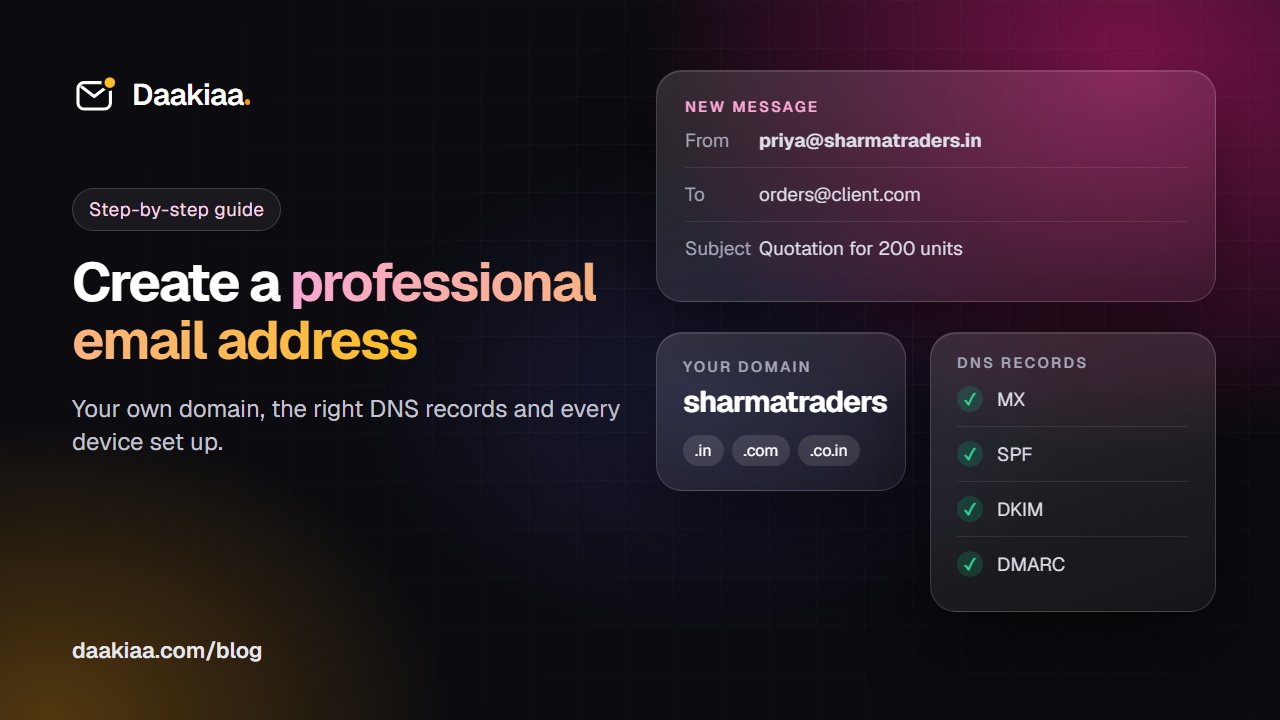
A Gmail or Yahoo address is fine for personal use. For a business, an address like priya@sharmatraders.in tells customers who you are before they even open the mail. This guide shows how to create a professional email address step by step: choosing a domain and address format, buying the domain, picking an email provider, adding DNS records, and setting up phones and Outlook. You do not need to be technical to follow it.
What is a professional email address?
A professional email address (also called a business email address or custom domain email) uses your own domain after the @ sign, such as accounts@yourcompany.com, instead of a free address like yourcompany123@gmail.com.
It has two parts:
- The domain (yourcompany.com), which you buy from a domain registrar and renew every year.
- The email service (email hosting), which stores your mailboxes and sends and receives your mail.
You can buy both from one company, or each from a different one.
Why a professional address matters
Customers trust it more
An invoice from billing@yourcompany.in looks like it came from a real business. The same invoice from a free address with numbers in it can look like a scam, at a time when fake payment requests are common.
Your mail is more likely to reach the inbox
When you own the domain, you can publish the records that prove your mail is genuine: SPF, DKIM and DMARC. Gmail, Outlook and other providers check them before deciding where a message goes. We explain them in why emails go to spam.
The company owns the mailbox, not the employee
If a sales executive uses a personal Gmail address with customers and then leaves, the customer history leaves too. With your own domain, your admin controls every mailbox. When someone leaves, you can reset the password, keep their mail and pass new messages to a colleague.
Step 1: Choose your domain name
Your domain usually matches your business or school name.
- Keep it short and easy to spell. If you have to spell it out on every phone call, it is too long.
- Avoid hyphens and numbers where you can. They are easy to miss when someone types the address.
- Pick the ending. .com is the best known worldwide. .in and .co.in show that you are an Indian business, and a short name is often easier to find. Some companies buy both and use one for email.
- Schools and colleges may qualify for .edu.in or .ac.in, which have their own eligibility rules.
Step 2: Buy the domain
You can buy a domain from any accredited registrar. GoDaddy, Hostinger and BigRock are common choices in India, and there are many others. The process is similar everywhere: search for the name, pay and confirm your contact details.
Three things matter more than which registrar you pick:
- Register the domain in the company’s name, with an email address and phone number the company controls, not a web developer’s or an employee’s.
- Turn on auto-renew and keep a valid payment method on file. If the domain expires, your email stops working.
- Note where your DNS is managed. Usually it is at the registrar. You will log in there in Step 5.
Step 3: Decide your address format
Agree on one format before you create mailboxes; it is hard to change later.
For people, common formats are firstname@ (priya@) for small teams, firstname.lastname@ (priya.sharma@) when names repeat, or first initial and last name (psharma@).
For roles, create addresses that stay the same when people change:
- info@ or hello@ for general enquiries
- sales@, support@, accounts@ or billing@
- admissions@ or office@ for schools
Avoid numbers, nicknames and birth years (rahul1990@). Print role addresses on your website and invoices, so customers do not need a new address when a staff member moves on.
Step 4: Choose an email provider
Well-known options include Google Workspace, Microsoft 365 and Zoho Mail, and Daakiaa is another. Some web hosting plans also include basic email. Rather than choosing by brand, compare these points:
| What to compare | Questions to ask |
|---|---|
| Storage | How many GB per mailbox? What happens when it is full? |
| Apps | Does it work with Outlook, Apple Mail and the Gmail app over IMAP and SMTP, on every plan? |
| Security | Passkeys and 2-step sign-in? Can the admin make 2-step sign-in compulsory? Spam and phishing filtering? |
| Data location | In which country are the mailboxes stored? |
| Billing | Monthly or yearly? Is GST extra? Do you get a proper GST invoice? |
| Moving in | Can it import old mail from Gmail, Microsoft 365 or another server? |
| Extras | Calendar, chat, meetings and file storage? A full office suite? |
If your team writes documents together in Docs or Word every day, a suite such as Google Workspace or Microsoft 365 may suit you best. If you mainly need email with a calendar and team tools, a focused email service can cost less.
Where Daakiaa fits
Daakiaa is business email on your own domain, with servers in India, run by DotPlus Technologies Private Limited.
- Free plan: up to 3 mailboxes with 2 GB each, free forever.
- Paid plans (per person per month, GST extra): Starter ₹129 with 30 GB per mailbox, Business ₹249 with 100 GB and Enterprise ₹449 with 200 GB. Billing is monthly, and paying for a year costs 11 months. See all plans and prices.
- Works with webmail, Outlook, Apple Mail, Thunderbird and the Gmail app over IMAP and SMTP.
- Includes a calendar, tasks, team chat, video meetings and file storage on every plan, but no office suite for documents and spreadsheets.
- Security includes passkeys, 2-step sign-in and spam and phishing filtering. See the security page.
Every new account is verified once: with Aadhaar for individuals, or a GST certificate or government registration document for organisations.
Step 5: Add the DNS records
After you sign up, your provider gives you a few records to add at your DNS provider, usually your registrar:
- MX records tell other servers where to deliver mail for your domain.
- SPF (a TXT record) lists the servers allowed to send mail for your domain.
- DKIM (usually a TXT record) holds a public key that checks the digital signature on each message.
- DMARC (a TXT record) tells receiving servers what to do when a message fails these checks.
Copy each record exactly. Changes usually take effect within minutes to a few hours, though some take up to 48 hours. Daakiaa shows the exact records during setup and can add them for you automatically on popular DNS providers.
To confirm everything is in place, enter your domain in our free email DNS checker, which checks MX, SPF, DKIM and DMARC. Our guide on SPF, DKIM and DMARC explains each record.
Step 6: Set up phones and Outlook
Create a mailbox for each person, then:
- Sign in to webmail first and check that sending and receiving work.
- On phones, add the account to the Gmail app, Apple Mail or Outlook. Daakiaa’s one-tap phone setup fills in the server settings. With other providers, choose IMAP and enter the server names they give you.
- In Outlook on a computer, add the account with the email address. If automatic setup does not find it, choose IMAP and enter the incoming (IMAP) and outgoing (SMTP) servers and ports from your provider.
- Send a test message to a Gmail and an Outlook address, and check that it lands in the inbox.
Ask everyone to turn on 2-step sign-in, or a passkey, on the first day.
Step 7: Add an email signature
A good signature has your name and role, company or school name, phone number with +91, and website. Some businesses also add their office address and GSTIN.
Keep it mostly text. A signature that is one large image may not show when images are blocked, and nobody can copy the phone number from it. Our free email signature generator creates a clean signature you can paste into webmail, Outlook or your phone.
Common mistakes to avoid
- Registering the domain under a vendor’s or employee’s account. If they leave, you can lose control of your email.
- Letting the domain expire. Turn on auto-renew.
- Sharing one password across the team. Give each person their own mailbox, and use role addresses for shared work.
- Skipping SPF, DKIM and DMARC. Without them, your mail is much more likely to land in spam.
- Forwarding everything to a personal Gmail address and replying from there. Replies can fail checks or show customers your personal address.
Frequently asked questions
Can I create a professional email address for free?
You need to buy a domain, which has a yearly fee. The email itself can be free: Daakiaa’s free plan gives up to 3 mailboxes with 2 GB each on your own domain, free forever, after a one-time account verification.
Can I use my business email address in the Gmail app?
Yes. Most business email services, including Daakiaa, work with the Gmail app, Outlook and Apple Mail over IMAP and SMTP. Your mail stays with your email provider; the Gmail app only shows it.
Do I need a website to have a business email address?
No. You need a domain, not a website. Many businesses set up email first and build a website on the same domain later.
Can I keep my address if I change email provider?
Yes. The address belongs to your domain, so you move by updating your DNS records. Daakiaa can import your old mail from Gmail, Google Workspace, Microsoft 365 and other IMAP servers.
Should I choose .com or .in?
Either works for email. .com is recognised worldwide, while .in and .co.in show that you are an Indian business. If you buy both, use one for email so your address stays consistent.
The bottom line
Creating a professional email address is usually an afternoon’s work: choose a domain, buy it in your company’s name, pick a provider, add the DNS records and set up phones. You get an address customers trust, mail that reaches the inbox and mailboxes your company keeps when staff change. To try it on your own domain, create a free Daakiaa account, or compare all plans and prices.
Business email on your own domain, free
3 mailboxes free forever, with passkeys, spam protection and one-tap phone setup.
More from the blog
Business Email ID Kaise Banaye: Company Name Se Professional Email
Business email ID kaise banaye: company name wali official email ID, free option, DNS records aur phone setup. Aasan Hinglish guide, step by step.
Why Are My Emails Going to Spam? Fix SPF, DKIM and DMARC
Why are my emails going to spam? See how Gmail and Outlook filter mail, set up SPF, DKIM and DMARC correctly, and work through a 10-point checklist.
Is Google Workspace for Education Free? What Indian Schools and Colleges Should Know
Is Google Workspace for Education free? Who qualifies, how approval works, what paid editions add, and what Indian schools should check before choosing.