Why Are My Emails Going to Spam? Fix SPF, DKIM and DMARC
Why are my emails going to spam? See how Gmail and Outlook filter mail, set up SPF, DKIM and DMARC correctly, and work through a 10-point checklist.
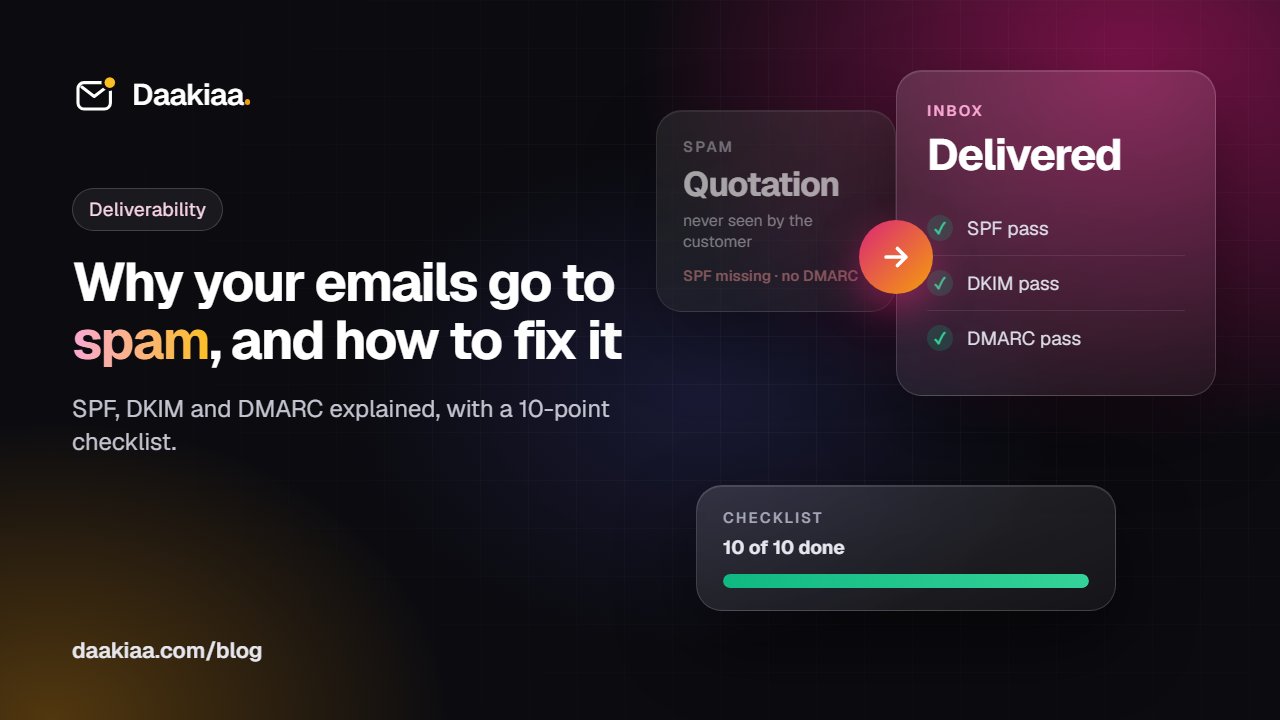
You send a quotation, the customer says it never arrived, and a week later they find it in their spam folder. If you are asking why are my emails going to spam, the cause is usually one of a few fixable problems: missing or broken authentication records, a weak sender reputation, or mail that looks like bulk mail. This guide explains how Gmail and Outlook decide, how to set up SPF, DKIM and DMARC correctly, and ends with a checklist you can work through today.
How Gmail and Outlook decide where your mail goes
No mail provider publishes its exact filtering rules, but they all look at the same broad signals:
- Authentication. Can the receiving server prove that the message really came from your domain? This is what SPF, DKIM and DMARC do.
- Reputation. What is the history of your domain and of the server that sent the message? Have people marked earlier mail from you as spam?
- Content. Does the message look like typical spam or phishing, with hidden links, risky attachments or one large image and almost no text?
- Engagement. Do people open your messages, reply and move them out of spam, or delete them unread and press “Report spam”?
Authentication is the easiest of these to fix, so start there.
First, check what your domain publishes
Before you change anything, enter your domain in our free email DNS checker. It shows your MX, SPF, DKIM and DMARC records and points out common mistakes.
SPF: which servers may send for you
SPF (Sender Policy Framework) is a TXT record on your domain that lists the servers allowed to send mail for it. A typical record looks like this:
v=spf1 include:_spf.yourprovider.com ~all
Each include: adds the servers of a service you use. ~all at the end tells receivers that mail from any other server is suspicious; -all is stricter and says other servers are not allowed at all.
Common SPF mistakes:
- Two SPF records. A domain must have exactly one TXT record that starts with
v=spf1. A second one, often added for a new service, makes SPF fail. Merge them into one record instead, such asv=spf1 include:first.example include:second.example ~all. - Too many lookups. SPF allows at most 10 DNS lookups during a check. Every
include,a,mx,existsandredirectcounts, including the ones inside the services you include. Go over 10 and SPF fails. Remove services you no longer use. - A forgotten sender. Your website contact form, the accounting software that emails GST invoices, or your CRM may all send mail “from” your domain. Each one needs to be covered by SPF, or to sign with DKIM for your domain.
- Using
+all. This allows any server in the world to send as you. Never use it.
DKIM: a signature on every message
DKIM (DomainKeys Identified Mail) adds a digital signature to every message your server sends. The receiver looks up your public key in DNS and checks two things: that your domain signed the message, and that nobody changed it on the way.
The key is published under a selector, a name your provider chooses, at an address like:
selector1._domainkey.yourcompany.com
- Use 2048-bit keys. 1024-bit keys are still accepted in many places, but they are weaker. If your provider offers a choice, pick 2048.
- Copy the whole key. A 2048-bit key is long, and one missing character breaks it.
- Every sending service needs its own DKIM. Your email provider signs your normal mail; a newsletter tool or billing software needs its own selector, set up in that tool.
DMARC: the policy that ties it together
DMARC tells receivers what to do when a message from your domain fails authentication, and asks them to send you reports. It is a TXT record at _dmarc.yourcompany.com:
v=DMARC1; p=none; rua=mailto:dmarc-reports@yourcompany.com
Alignment
DMARC passes only when SPF or DKIM passes and the domain they checked matches the domain in the visible From address (by default, a subdomain of it also counts). This is called alignment. A newsletter tool that sends with its own domain can pass SPF for itself and still fail DMARC for you. Setting up DKIM with your domain inside that tool usually fixes it.
From none to reject, one step at a time
- Start with
p=none. Delivery does not change, but you start receiving reports. - Read the
ruareports for a few weeks. These XML files, usually sent daily, list every server sending as your domain and whether it passed. Fix anything legitimate that fails. - Move to
p=quarantine, which asks receivers to put failing mail in spam. - Finally, move to
p=reject, which asks them to refuse it. Now it is much harder for anyone to fake your domain to cheat your customers.
Jumping straight to reject can block your own invoices if you missed a sender, so take it slowly.
Sender reputation
Even with perfect records, mail providers judge you on your history.
- New domains have no history. Start with normal one-to-one mail, and do not send hundreds of messages from a domain you bought last week.
- Sudden jumps in volume look suspicious. If you need to send more, increase it gradually over days or weeks. Schools sending fee reminders or circulars to every parent should treat them as bulk mail.
- Shared servers are used by many customers of the same provider, so their behaviour can affect you. Ask how your provider keeps spammers off its platform. Daakiaa, for example, verifies every new account once: with Aadhaar for individuals, or a GST certificate or government registration document for organisations.
- Spam complaints hurt the most. Every “Report spam” click counts against you.
A hacked mailbox sending spam can damage your reputation quickly. Protect every account with 2-step sign-in or a passkey; our security page explains how Daakiaa protects accounts and filters spam and phishing.
Content and list hygiene
- Never buy email lists. Purchased lists often contain old addresses and spam traps, and they bring complaints.
- Send only to people who asked to hear from you, and remove addresses that bounce.
- Add a clear unsubscribe link to newsletters and offers, and act on requests promptly.
- Avoid link shorteners. Spammers use them to hide where a link goes. Use your full website address.
- Do not send image-only mail. One large image with no text is a classic spam pattern. Write the message as text.
- Keep newsletters separate. Send bulk mail through a dedicated email marketing service and keep business mailboxes for one-to-one mail, so a campaign problem does not affect your daily email.
Gmail and Yahoo rules for bulk senders
From February 2024, Google and Yahoo started enforcing stricter rules for anyone sending mail to their users. Google defines a bulk sender as one that sends close to 5,000 or more messages a day to Gmail addresses. Yahoo’s rules are broadly similar. In general terms:
- All senders should authenticate with SPF or DKIM, have valid forward and reverse DNS for their sending servers (your email provider normally handles this) and keep spam complaints low.
- Bulk senders must have SPF, DKIM and DMARC (at least
p=none), with the From domain aligned. - Marketing and subscription mail from bulk senders must offer one-click unsubscribe and act on requests within two days.
- The spam complaint rate should stay below 0.3%. Google recommends staying well under that, ideally below 0.1%. If you send enough mail to Gmail, Google Postmaster Tools shows your rate.
In 2025 Microsoft announced similar requirements for high-volume senders to Outlook.com, Hotmail and Live addresses. Even if you send far fewer messages, meeting the bulk-sender standard is the simplest way to stay out of spam.
A 10-point checklist
- Run your domain through the email DNS checker.
- Keep exactly one SPF record, within 10 lookups, ending in
~allor-all. - Make sure every service that sends as your domain is covered by SPF or DKIM.
- Turn on DKIM with a 2048-bit key for your mailboxes and for every other sending service.
- Publish DMARC with
p=noneand aruaaddress, then move to quarantine and reject. - Turn on 2-step sign-in or passkeys for every mailbox.
- Start new domains slowly and increase volume gradually.
- Never buy lists, and remove addresses that bounce.
- Send newsletters through a marketing service, with one-click unsubscribe.
- Write mostly text with full, clear links, and avoid image-only messages.
Frequently asked questions
Why do my emails go to spam in Gmail but not in Outlook?
Each provider uses its own filters and sees how its own users react to your mail. A problem such as a missing DKIM signature, or spam reports from Gmail users, can affect one provider before the other. Check your records first.
Do I need SPF, DKIM and DMARC if I send only a few emails a day?
Yes. Gmail and Yahoo expect SPF or DKIM from every sender, and having all three makes your mail easier to trust. DMARC also makes it harder for fraudsters to send fake invoices or payment requests in your company’s name.
How long do the changes take to work?
DNS changes usually take effect within minutes to a few hours, and sometimes up to 48 hours. Reputation takes longer: it builds over weeks of steady, normal sending.
My emails were fine until last week. What changed?
Common causes are a new service sending as your domain without being added to SPF or DKIM, a DNS change that removed a record, a hacked mailbox sending spam, or a sudden large mailing. Check your records first, then your sent mail and recent sign-in activity.
Does my email provider handle this for me?
Partly. Your provider signs mail with DKIM and gives you the SPF and DMARC values, but they must be published in your DNS. Daakiaa sets up DKIM signing, SPF and DMARC during onboarding, shows the exact records and can add them automatically for popular DNS providers. Other tools that send as your domain, such as billing or newsletter software, still need their own setup.
The bottom line
Most spam-folder problems come down to three things: correct authentication, a clean reputation and mail that people expect. Check your records with the email DNS checker, fix SPF, DKIM and DMARC, and grow your sending slowly. If you are still setting up, our guide to creating a professional email address walks you through it, and Daakiaa’s free business email plan sets up these records during onboarding.
Business email on your own domain, free
3 mailboxes free forever, with passkeys, spam protection and one-tap phone setup.
More from the blog
Business Email ID Kaise Banaye: Company Name Se Professional Email
Business email ID kaise banaye: company name wali official email ID, free option, DNS records aur phone setup. Aasan Hinglish guide, step by step.
How to Create a Professional Email Address for Your Business
Create a professional email address on your own domain: pick a domain and provider, add MX, SPF, DKIM and DMARC, and set up phones and Outlook.
Is Google Workspace for Education Free? What Indian Schools and Colleges Should Know
Is Google Workspace for Education free? Who qualifies, how approval works, what paid editions add, and what Indian schools should check before choosing.