Shared Mailbox vs Group Email: Which Should info@ and sales@ Be?
A group sends everyone a copy; a shared mailbox gives your team one inbox and replies as info@. Learn which one each company address should be.
Every business has a few addresses that belong to the company rather than to one person: info@, sales@, support@, accounts@, hr@. Customers write to them, and someone on your team has to answer.
There are two common ways to set these up: a group (also called a distribution list) and a shared mailbox. They look the same from the outside, but they behave very differently once mail arrives. Pick the wrong one and you get duplicate replies, lost threads and customers who never hear back.
This guide explains the difference in plain words, shows when each one fits, and how to set both up in Daakiaa.
The short answer
- Use a group when you want a message to reach several people, and each of them deals with it in their own inbox.
- Use a shared mailbox when a team needs to work from one inbox together and reply as the company.
Most small businesses need both: a group for internal lists like team@ or managers@, and shared mailboxes for the addresses customers write to.
What a group (distribution list) does
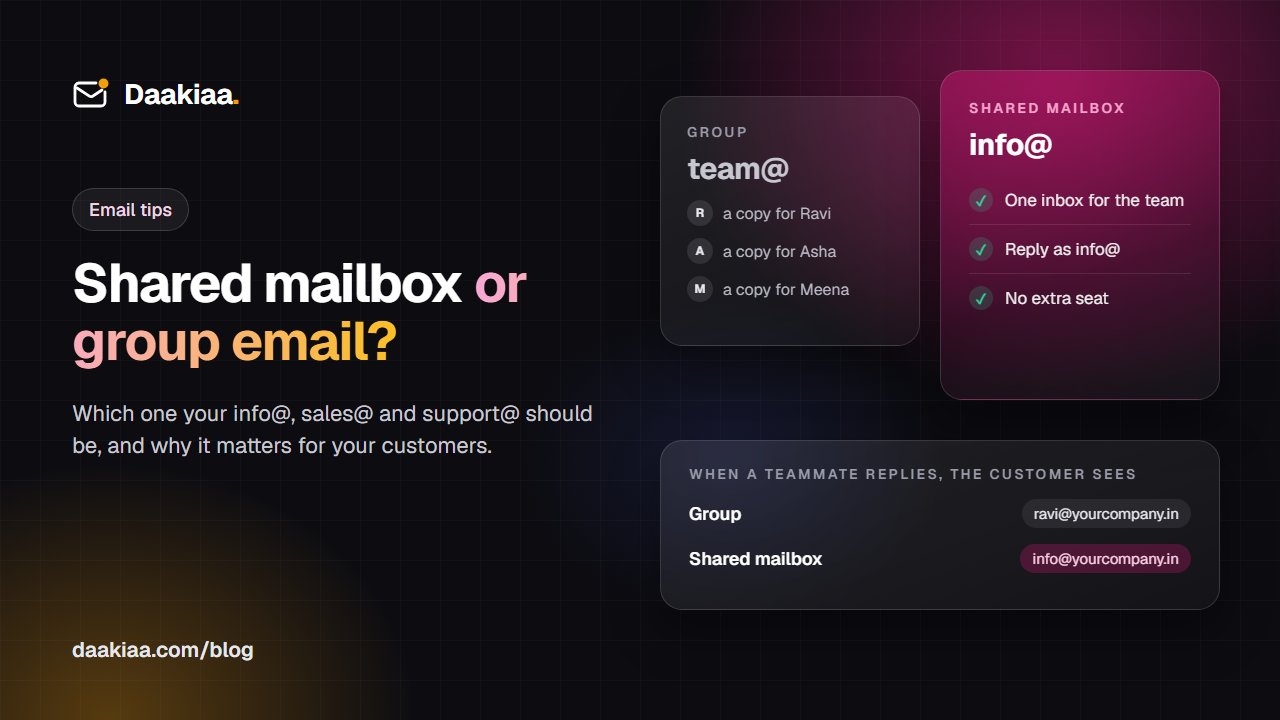
A group is an address that forwards every message to its members. Send one mail to team@yourcompany.in and Ravi, Asha and Meena each get their own copy in their own inbox.
That is perfect for announcements and internal lists. It is less good for customer mail, because:
- Everyone gets a separate copy. If Ravi replies, Asha does not see it. Two people may answer the same customer, or both may assume the other one did.
- Replies come from the person, not the company. The customer wrote to sales@ but the answer comes from ravi@. The next time they write, they write to Ravi, and when Ravi is on leave the conversation stops.
- Nothing is kept in one place. When someone leaves, the history of those customers leaves with their inbox.
What a shared mailbox does
A shared mailbox is a real mailbox with its own inbox, folders and storage, but nobody signs in to it with a password. Instead, the people you choose as members open it from their own account, next to their personal mail.
- One inbox for the whole team. Everyone sees the same messages. When Asha replies, the reply is in the shared Sent folder for Ravi to see.
- Replies go out as the company. Members send as info@, so the customer always sees one consistent address.
- The history stays with the business. People join and leave; the mailbox and every conversation in it stay.
- No passwords to share. Each member uses their own sign-in, so you never pass around one password on WhatsApp, and you can take someone’s access away without changing anything for the others.
Side by side
| Group | Shared mailbox | |
|---|---|---|
| Mail arrives | A copy in each inbox | One shared inbox |
| Reply comes from | The person | The shared address |
| Team sees replies | No | Yes |
| Own folders | No | Yes |
| Best for | Lists, announcements | info@, sales@, support@ |
Which one should each address be?
A simple rule of thumb that works for most companies:
- info@, sales@, support@, accounts@, careers@ → shared mailbox. Customers, vendors and applicants write here and expect one consistent answer.
- team@, managers@, delhi-office@, all@ → group. These are for reaching people, and each person handles their own follow-up.
- noreply@ or alerts@ used by software → usually a group, so the right people get copies of system mail.
If one person handles an address today (say, only the owner reads accounts@), a shared mailbox still makes sense: the day you hire help, you add them as a member instead of handing over your password.
How other providers handle it
At the time of writing:
- Microsoft 365 has shared mailboxes, and they do not need a paid licence up to a storage limit (50 GB).
- Google Workspace has no shared mailbox as such. Teams usually combine Google Groups (“collaborative inbox”) with mail delegation, which works but is more fiddly to set up and to understand.
If you are comparing providers, see our Microsoft 365 alternative and Google Workspace alternative pages.
Shared mailboxes and groups in Daakiaa
Daakiaa has both, and they are set up by your company’s admin in the Admin console.
Shared mailboxes are free. A shared mailbox is never counted as a paid user. Its storage comes out of your company’s storage, and you choose how much of it each shared mailbox may use. A company can have as many shared mailboxes as it has people, and at least five.
To create one, open Admin console → Shared mailboxes, choose the address (for example sales@), its display name (“Sales, Sharma Traders”) and the members. That is it: members find it under Shared mailboxes in the left-hand menu of their mail, and open it with one click. When they reply, the mail goes out from sales@.
Groups are under Admin console → Groups. A group has its own address, and mail sent to it is delivered to every member. Members can be people in your company or outside it, which is handy for a list that includes your accountant or a partner firm.
A quick checklist before you switch
- List your company addresses. Write down every address that is not a person: info@, sales@, and so on.
- Decide group or shared mailbox for each, using the rule of thumb above.
- Pick members. For shared mailboxes, add only the people who actually answer that mail. Fewer cooks, fewer duplicate replies.
- Agree a simple habit. For example: whoever replies moves the conversation to a “Done” folder, so the inbox shows only what still needs an answer.
- Tell your customers nothing. The addresses stay the same; only the way your team works behind them changes.
Summary
A group spreads mail to people. A shared mailbox lets a team share one inbox and reply as the company. For the addresses your customers use, a shared mailbox almost always gives a faster, more consistent reply, and keeps the history with your business instead of with one person’s inbox.
If you are setting up business email for the first time, start with our guide on how to create a professional email address. Daakiaa includes shared mailboxes at no extra cost on every plan: see pricing or create your company’s account in a few minutes.
Business email on your own domain, free
3 mailboxes free forever, with passkeys, spam protection and one-tap phone setup.
More from the blog
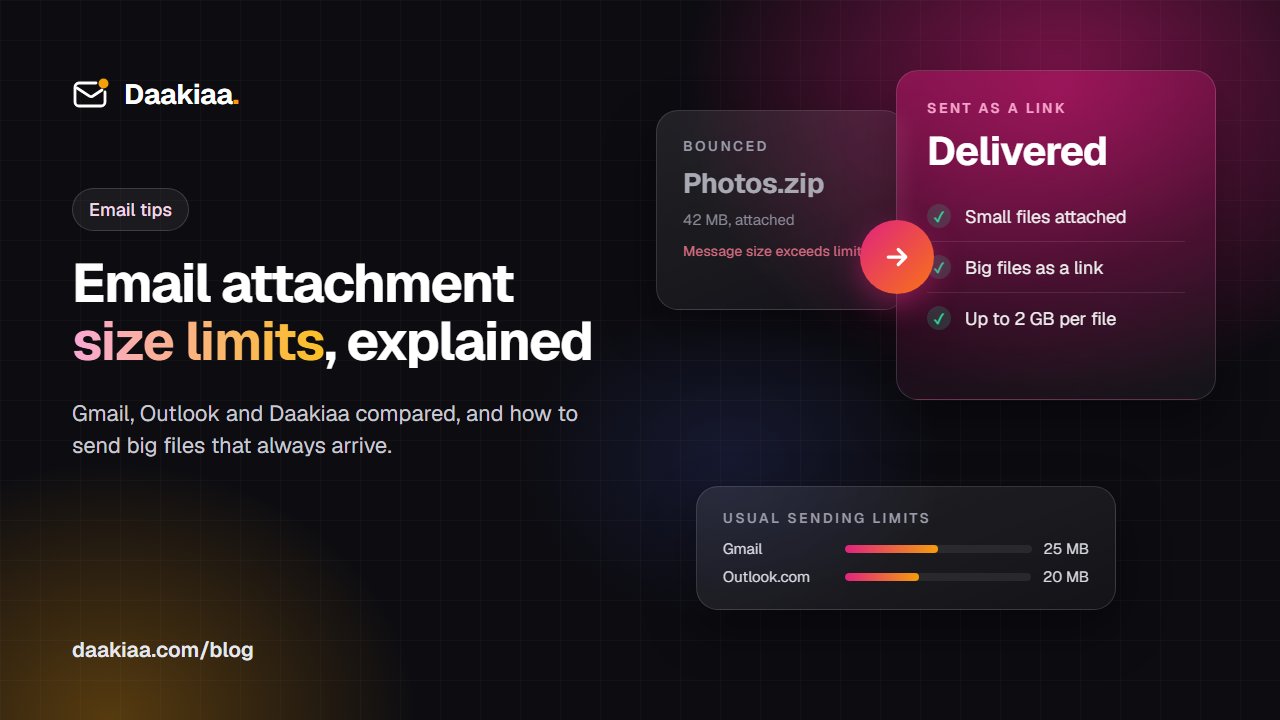
Email Attachment Size Limits: Gmail, Outlook and Daakiaa Compared
What is the email attachment size limit in Gmail, Outlook and Microsoft 365? Why big files bounce, and how to send large files by email that always arrive.
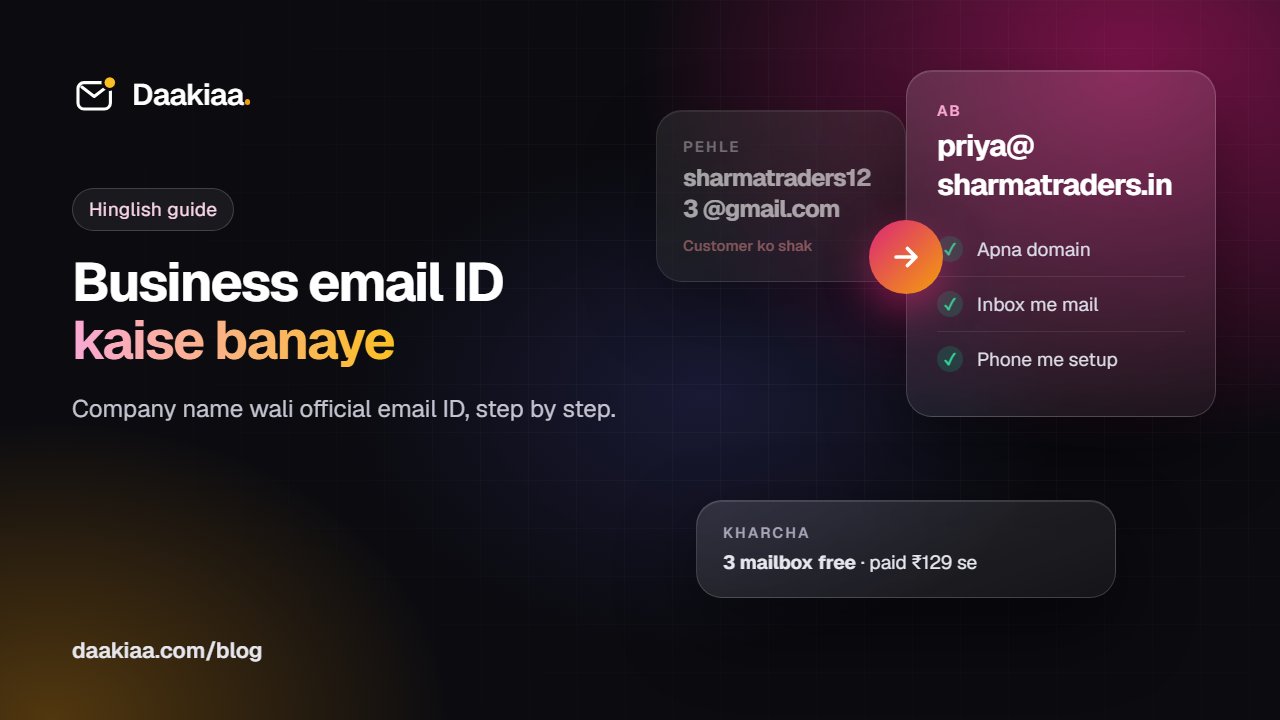
Business Email ID Kaise Banaye: Company Name Se Professional Email
Business email ID kaise banaye: company name wali official email ID, free option, DNS records aur phone setup. Aasan Hinglish guide, step by step.
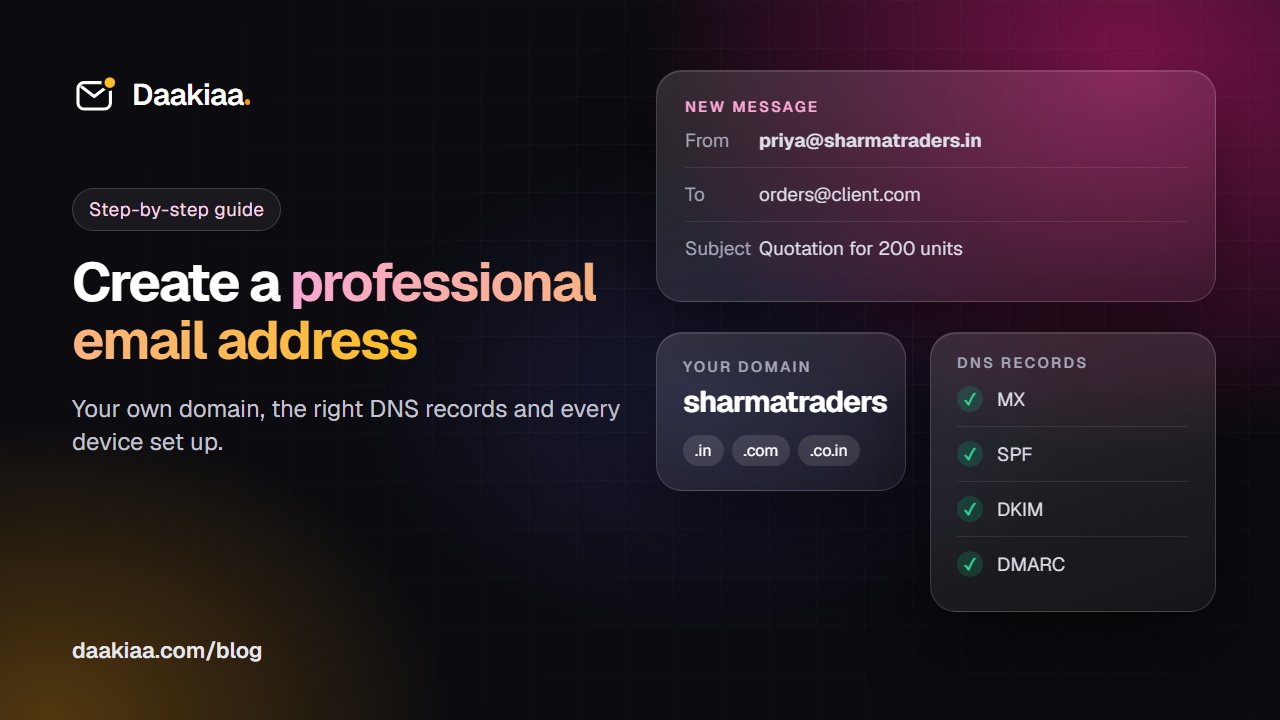
How to Create a Professional Email Address for Your Business
Create a professional email address on your own domain: pick a domain and provider, add MX, SPF, DKIM and DMARC, and set up phones and Outlook.