How to Run Professional Client Video Meetings Without Extra Apps
A simple checklist for professional client video meetings, and how Daakiaa Meet adds one-click calls, guest links and a waiting room to your business email.
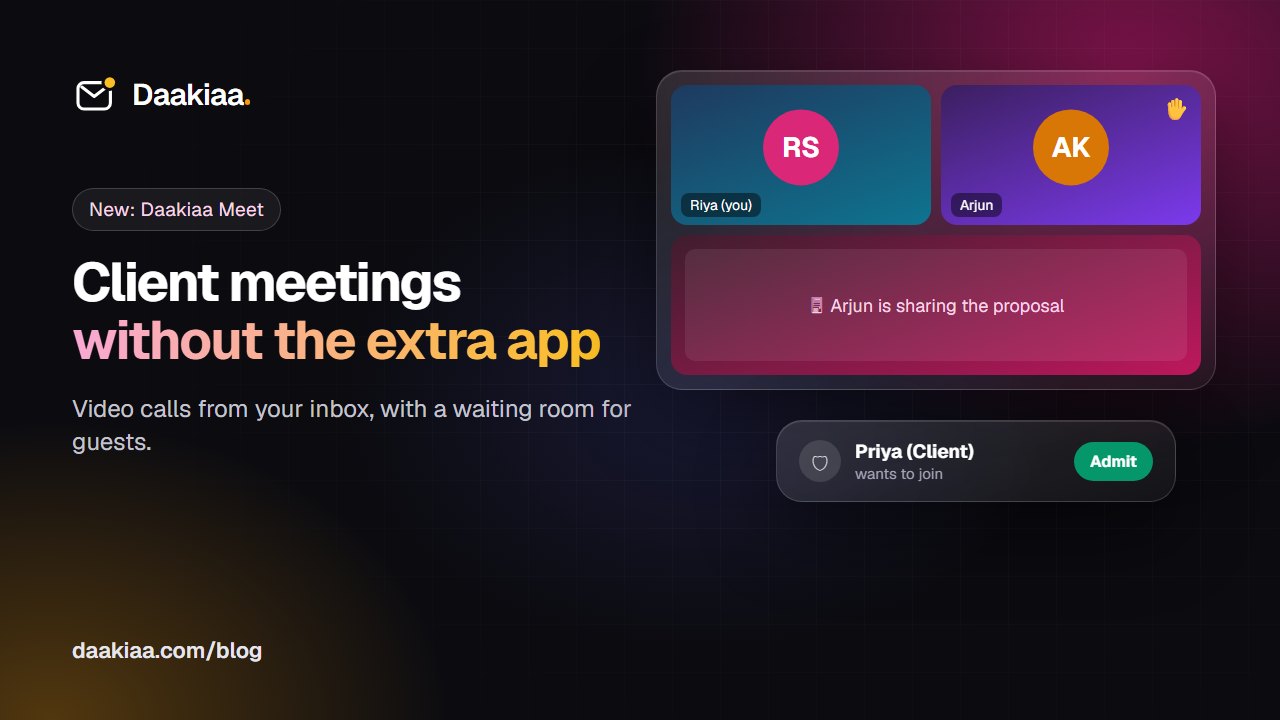
For most small businesses, a client meeting starts with a small scramble: which video app does the client use, does everyone have the right account, who has the link, and why is the call cut off after 40 minutes just when the discussion gets useful?
This guide covers how to run professional client meetings without that friction, and how Daakiaa Meet puts video calls right inside your business email, on every plan.
What clients notice in a video meeting
Clients rarely judge a meeting by its features. They notice four things:
- How easy it was to join. One link, one click, no app to install and no account to create.
- Whether it started on time. Waiting for the host to “let the meeting begin” or fixing audio for ten minutes looks unprepared.
- Whether they felt in the right place. A meeting link from your own company domain looks more professional than a random link from a personal account.
- What happened next. A clear follow-up email with the decisions and next steps.
Everything else (backgrounds, effects, fancy layouts) matters far less than these basics.
A simple checklist for client meetings
Before the meeting
- Send a calendar invitation, not just a link. It lands in the client’s own calendar (Gmail, Outlook or Apple), with the time in their time zone and the link in one place.
- Put the agenda in the invite. Three bullet points are enough: what you will cover and what you need from them.
- Test your camera and microphone a minute before joining. A preview screen with a sound level makes this a five-second check.
During the meeting
- Let the client in yourself. A waiting room means you decide who joins, and you can greet them by name.
- Share only what you need. Share one window or browser tab rather than your whole screen, so notifications and other tabs stay private.
- Use reactions and raised hands in larger calls. People can agree or ask to speak without talking over each other.
- Note decisions as you go. In-meeting chat is handy for links, numbers and spellings that are hard to say out loud.
After the meeting
- Send a short summary the same day, by email: decisions, who does what, and by when.
- Turn action items into tasks with due dates, so follow-ups don’t depend on memory.
Running it with Daakiaa Meet
Daakiaa Meet is built into your Daakiaa account, next to your mail, calendar, tasks and team chat. It is included on every plan, including the Free plan.
Start in one click. Open Meet from the apps menu and choose New meeting, or press the video button in any chat to start a call and post the link to everyone in the conversation.
Schedule from Calendar. When you create an event, choose “Add Daakiaa Meet”. The meeting link goes into the invitation, so guests on Gmail or Outlook can join straight from the email.
Guests join without an account. Anyone with the link can join from a browser on a computer or phone. They type their name, check their camera and microphone, and ask to join.
A waiting room you control. People from your own company join straight away. Clients and other outsiders wait until someone from your company presses Admit. You can admit people one by one or all at once, and you can end the meeting for everyone when you are done.
Screen sharing, chat, hands and reactions. Share a screen, window or tab (with sound) and it shows large for everyone. Use the in-meeting chat for links, raise your hand to speak, and react with a thumbs up or a clap without interrupting.
On our own servers. Calls run on Daakiaa’s own servers, not on another company’s meeting service, and only people with the link, plus guests you let in, can join.
Meeting limits by plan
- Free plan: meetings up to 45 minutes with up to 10 people.
- Paid plans: meetings up to 24 hours with up to 100 people.
A countdown appears near the end of a time-limited meeting, so nobody is cut off by surprise.
Common questions
Do clients need to install anything? No. A recent Chrome, Edge, Safari or Firefox is enough, on a computer or a phone.
Can people from another company join? Yes. They wait in the waiting room until someone from your company lets them in.
Can I use my own meeting tool instead? Of course. Calendar invitations still accept Zoom, Google Meet or Teams links; Daakiaa Meet is simply there when you want everything in one place.
Get started
If your company already uses Daakiaa, open the apps menu in the top right corner and choose Meet. If you are new, create a free account with up to three mailboxes on your own domain, and see all plans on the pricing page. For a full overview of features, see Daakiaa video meetings.
Business email on your own domain, free
3 mailboxes free forever, with passkeys, spam protection and one-tap phone setup.
More from the blog
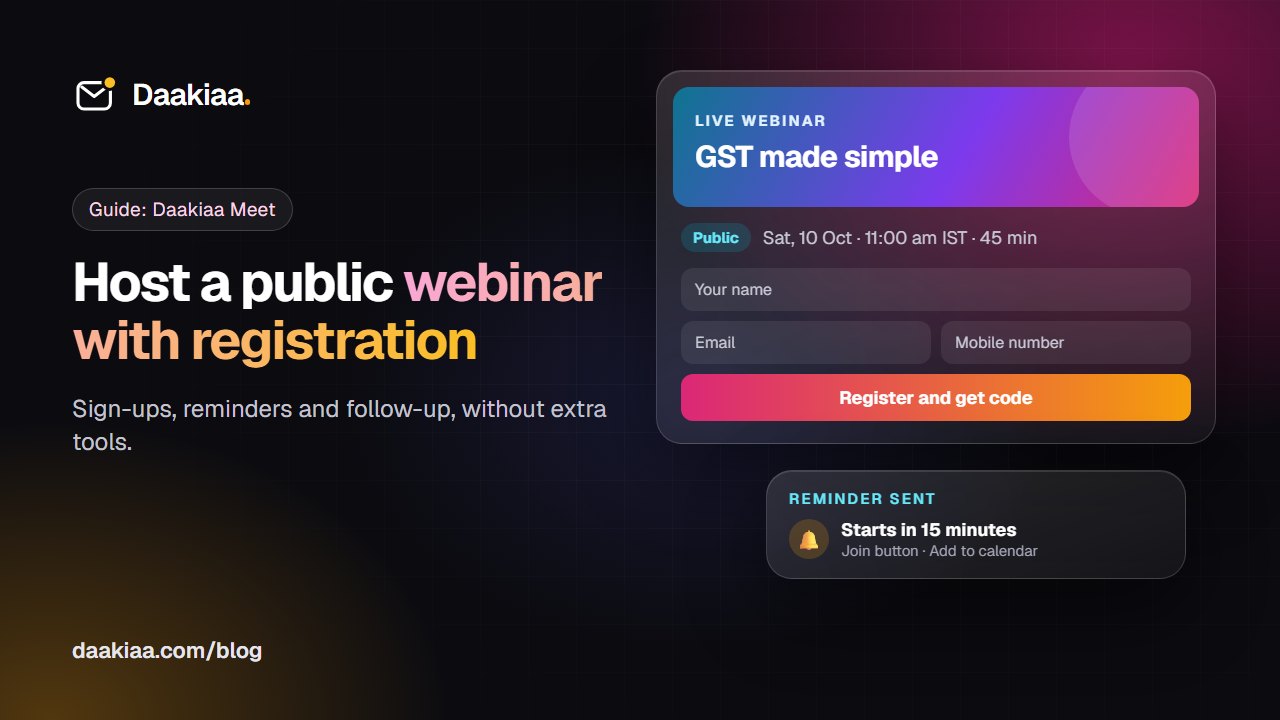
How to Host a Public Webinar with Registration: A Step-by-Step Guide
A step-by-step guide to hosting a public webinar with registration: plan it, brand it, collect sign-ups, send reminders and follow up, with Daakiaa Meet.
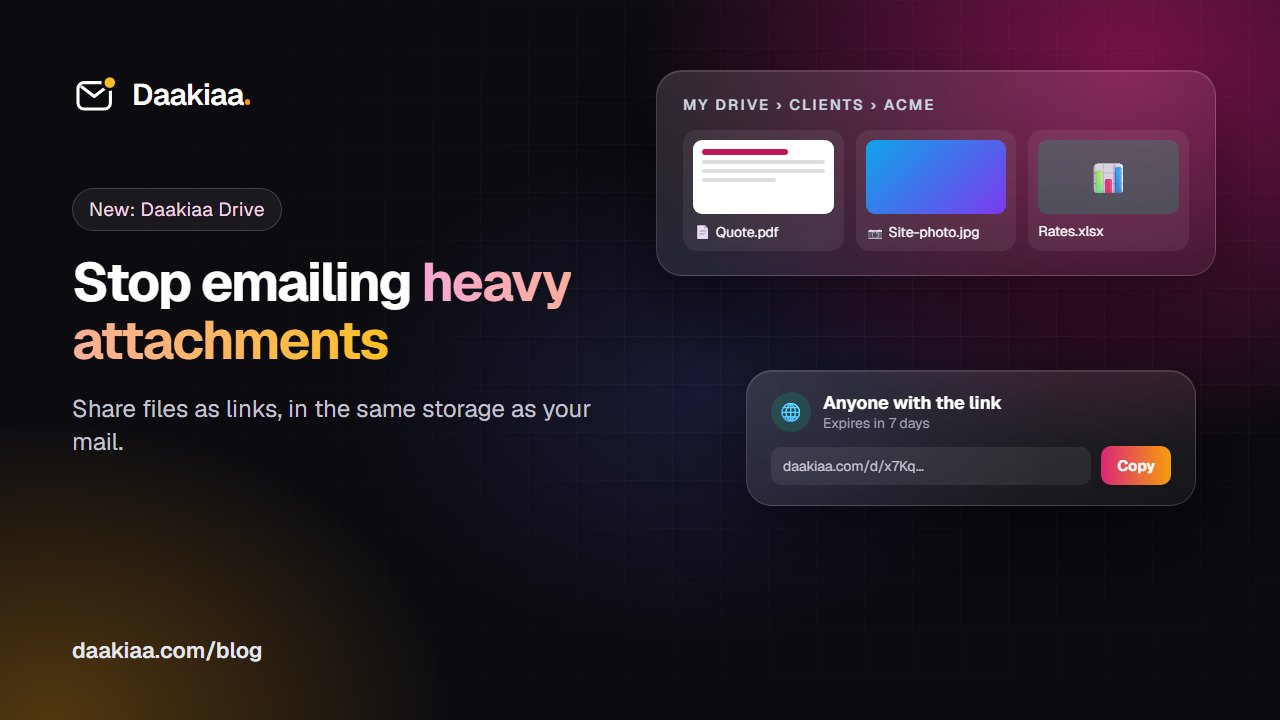
Share Large Files Without Attachments: A Simple System for Small Teams
Why attachments cause trouble, a simple folder system for small teams, and how Daakiaa Drive shares files as expiring links from your business email account.
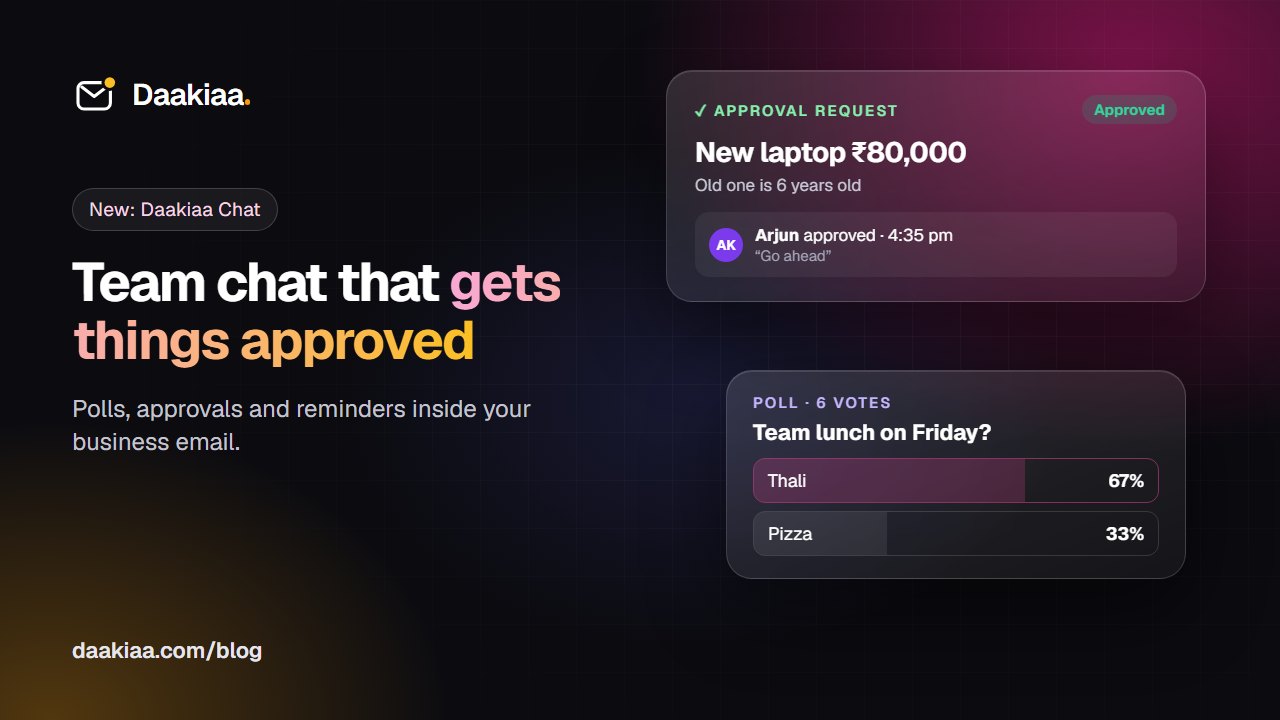
Faster Approvals in a Small Business, Without Endless Email Threads
Approvals stuck in email and WhatsApp? A simple five-step habit for faster decisions, and how team chat with one-tap approvals, polls and reminders helps.