Faster Approvals in a Small Business, Without Endless Email Threads
Approvals stuck in email and WhatsApp? A simple five-step habit for faster decisions, and how team chat with one-tap approvals, polls and reminders helps.
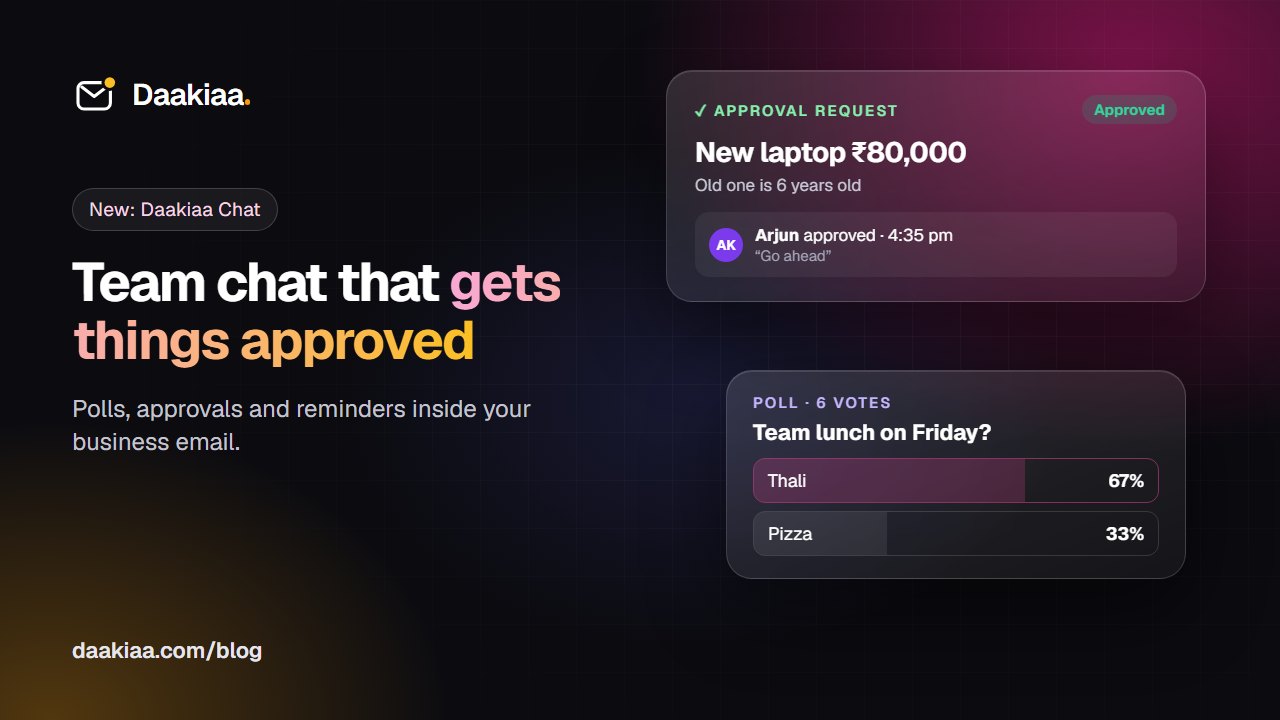
“Can I go ahead with this?” is one of the most common questions in any small business. A purchase, a discount for a client, a day of leave, a final design. And it is usually asked in the slowest possible way: an email that sits in a busy inbox, a WhatsApp message that scrolls away under fifty others, or a phone call nobody remembers the answer to a week later.
This guide shows a simple way to get faster, clearer approvals in a small team, and how to do it with team chat that lives right next to your business email.
Why approvals get stuck
Approvals rarely get stuck because people say no. They get stuck because the request is easy to miss and hard to answer.
- It looks like every other message. A request buried in a long thread doesn’t stand out from “thanks” and “noted”.
- It is not clear who should decide. In a group, everyone assumes someone else will reply.
- Answering takes effort. Writing a proper reply to an email feels like a task, so it gets postponed.
- The decision disappears. Even when someone says “ok”, it is hard to find later, and nobody knows exactly who agreed and when.
The fix is to make the request look different, name the person who decides, make the answer one tap, and keep the decision on record.
A five-step approval habit for small teams
1. Put the request in one line
Lead with what needs approval and the amount or dates: “New laptop for Riya, ₹80,000” or “Leave on 12–14 October”. Details go underneath. If the approver only reads the first line, they should still know what they are saying yes to.
2. Name the approver
Pick one or two people who can decide. Not “anyone?”, not the whole group. When a request has a name on it, it gets answered.
3. Make yes or no a single tap
The fastest approvals are the ones that need no typing. A clear Approve and Reject button removes the “I’ll reply properly later” delay. If the approver wants to add a condition, an optional note is enough: “Approved, but get two quotes next time.”
4. Keep the decision with the request
The approval should stay attached to the request: who decided, when, and what they said. Weeks later, when accounts asks who signed off the laptop, the answer is one search away instead of a guessing game.
5. Follow up automatically, not from memory
If something can’t be decided today, set a reminder instead of keeping it in your head. A notification tomorrow morning brings it back at the right moment.
Doing it in Daakiaa Chat
Daakiaa now includes team chat in every business email plan, Free included, in the same account as your mail, calendar and tasks. It was built around exactly this kind of everyday decision.
Approvals. In any chat, type /approve and what needs approval, pick the approver and send. The approver gets a notification on their phone or computer and can Approve or Reject right in the chat, with an optional note. The request then shows its status, who decided and when, for everyone in the conversation. The person who asked can also withdraw it.
Polls. For decisions that belong to the whole team, type /poll Team lunch on Friday? | Thali | Pizza. Everyone answers with a tap and results update live, including who chose what.
Remind me. Any message can come back later: in 20 minutes, in an hour, this evening or tomorrow morning. Or type /remind send the quote to Acme in 2h. It becomes a task with a notification, even if the app is closed.
Read receipts. One tick means sent, two grey ticks mean the message reached their app, and two blue ticks mean it was seen. In groups you can see exactly who has seen your message, so “did you see my request?” becomes unnecessary.
Everything in one place. Recent chats sit in the mail sidebar and open in small windows over your inbox. Type /task to add a to-do, or /meet to schedule a meeting with everyone in the chat.
Why chat inside your email account helps
Many small businesses run on a mix of free tools: email for clients, a personal messaging app for the team, and spreadsheets for everything else. It works until someone leaves the company with half the decisions on their personal phone.
Keeping team chat in the same business account as your email has a few practical advantages:
- One sign-in, one bill. No separate chat app to buy or manage.
- Company-owned conversations. Chats belong to your company accounts, not to personal phone numbers.
- The company directory is already there. Everyone in your company is listed with their role and department, and you can see who is online now.
- Safer file sharing. Photos, PDFs and office files are shared inside the company, while programs and scripts such as .exe files are blocked.
- The same security as your mail. Passkeys, 2-step sign-in and country sign-in rules protect chat too.
Good habits that make approvals even faster
- Batch small requests. Five small purchases in one request with a total is easier to approve than five separate messages.
- Add a deadline in the title. “Approve by Thursday: hotel booking for the expo” tells the approver how urgent it is.
- Approve in public, discuss in private. Keep the decision in the team chat so everyone knows the outcome. If a request needs a longer discussion, move it to a direct message and come back with the result.
- Close the loop. When the approved thing is done, reply to the request (“Ordered, arriving Monday”) so the thread tells the whole story.
Get started
If your team already uses Daakiaa for business email, Chat is ready for you: open the apps menu in the top right corner and choose Chat. If you are new, you can create a free account with up to three mailboxes on your own domain, and see all plans on the pricing page.
Fewer “did you see my mail?” messages, faster decisions, and a clear record of who agreed to what: that is the whole point.
Business email on your own domain, free
3 mailboxes free forever, with passkeys, spam protection and one-tap phone setup.
More from the blog
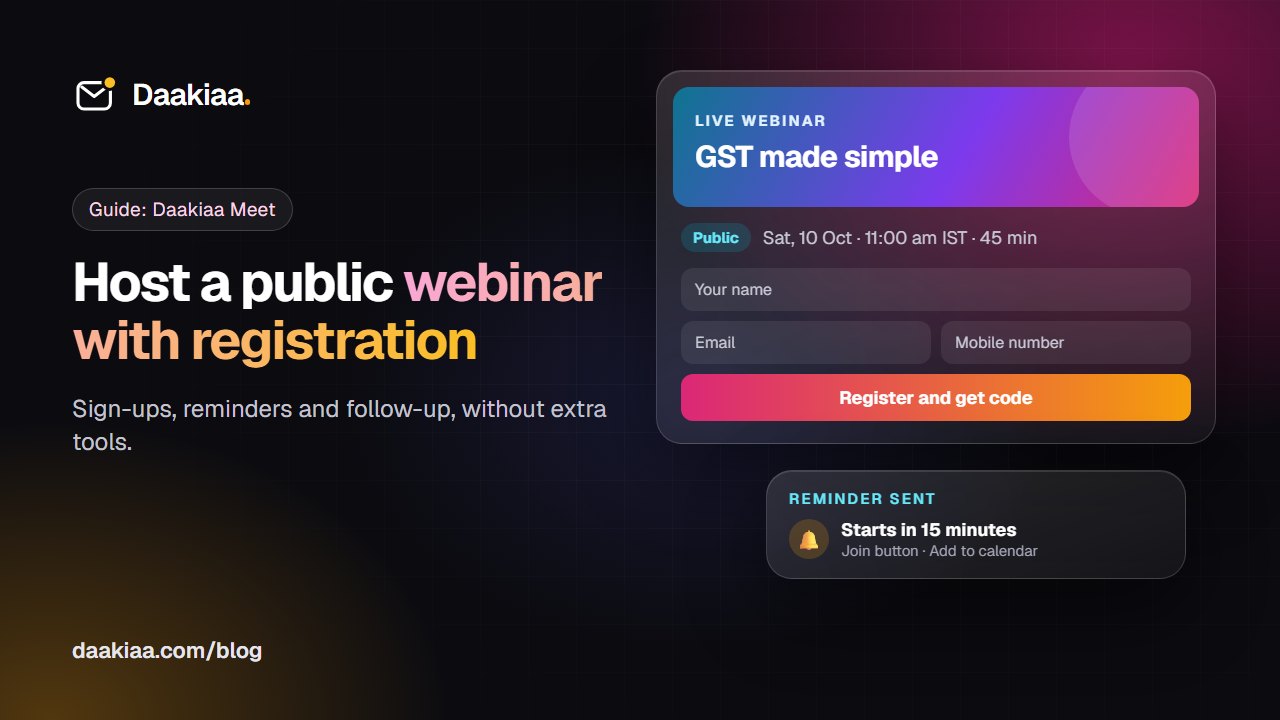
How to Host a Public Webinar with Registration: A Step-by-Step Guide
A step-by-step guide to hosting a public webinar with registration: plan it, brand it, collect sign-ups, send reminders and follow up, with Daakiaa Meet.
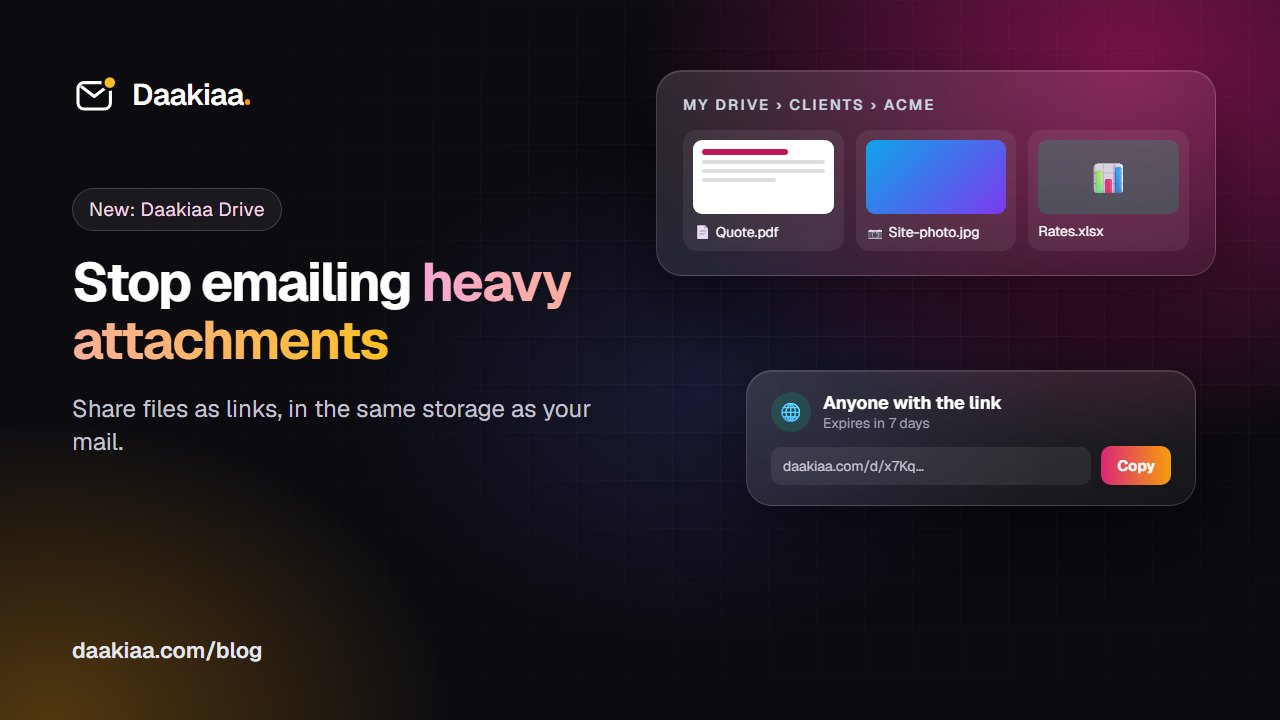
Share Large Files Without Attachments: A Simple System for Small Teams
Why attachments cause trouble, a simple folder system for small teams, and how Daakiaa Drive shares files as expiring links from your business email account.
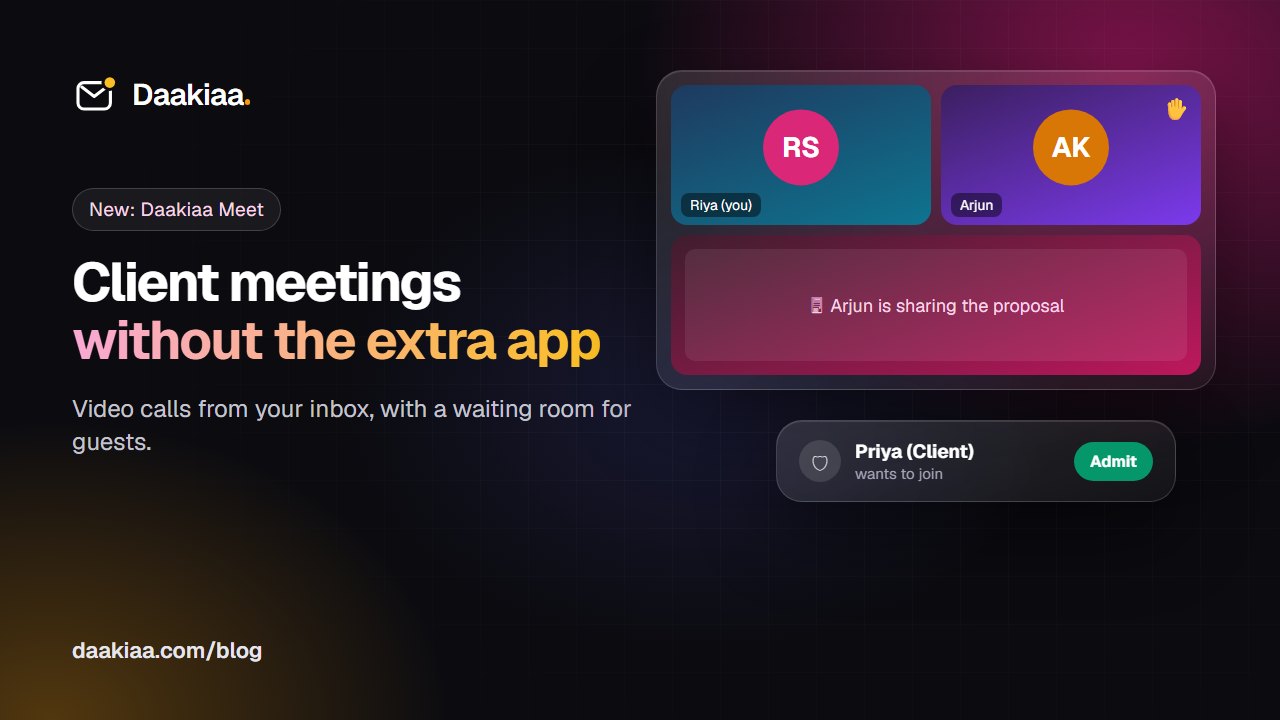
How to Run Professional Client Video Meetings Without Extra Apps
A simple checklist for professional client video meetings, and how Daakiaa Meet adds one-click calls, guest links and a waiting room to your business email.