How to Send Meeting Invites from Your Business Email
How meeting invitations work across Gmail, Outlook and Apple Calendar, and how to send them free from your own business email with Daakiaa Calendar.
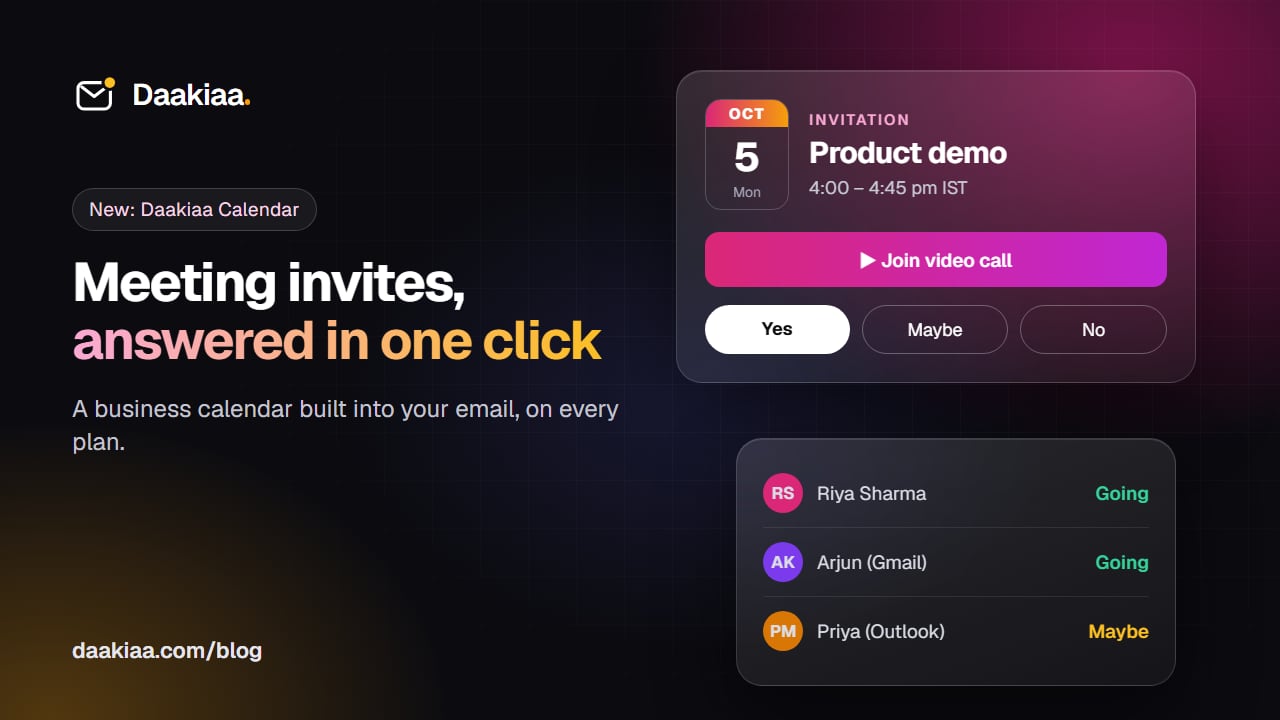
Meetings are where work actually gets decided, yet for many small businesses the way they are planned is still a WhatsApp message, a phone call and a hope that everyone remembers. A proper meeting invitation fixes that: the time lands in everyone’s calendar, the video link is one tap away, and you can see who is actually coming.
This guide explains how meeting invitations work across Gmail, Outlook and Apple Calendar, what to look for in a business calendar, and how the new calendar in Daakiaa handles all of it from your own business email address.
What a meeting invitation really is
When you invite someone to a meeting, two things travel in the email:
- A readable message with the title, date, time, place or video link, and the agenda.
- A calendar file (an iCalendar or
.icspart) that calendar apps understand. This is what lets Google Calendar, Outlook and Apple Calendar show the event with Yes / Maybe / No buttons and add it to the guest’s calendar.
When a guest answers, their calendar sends a small reply back to the organizer. A good calendar reads those replies and updates the guest list for you, so you never have to count heads in your inbox.
Because this is an open standard, it works between different providers. You can invite a client on Gmail, a partner on Outlook and a colleague on your own domain to the same meeting.
What to look for in a business calendar
If your team is choosing a calendar, these are the points that make a difference day to day:
- It lives with your business email. Invitations should go out from you@yourcompany.com, not from a personal account.
- Guests can answer without signing up. Clients should be able to say yes from the email itself.
- Invitations you receive are easy to act on. Answering should add the event to your calendar in one step.
- It warns you about clashes before you accept two things at once.
- It is fast to add events. Typing a sentence beats filling in six fields.
- It works on the phone. Most people check their day on mobile.
Daakiaa Calendar: built into your mailbox
Every Daakiaa plan, including the free business email plan, now includes a calendar in the same account as your mail and contacts. Open it from the apps menu at the top right of your webmail.
Invitations that work everywhere
Add guests to an event and Daakiaa sends each of them a clear invitation email with the time, the video link and the agenda, plus a standard calendar invite. Guests on Gmail, Outlook or Apple Calendar see the event in their own calendar and can answer there.
Every invitation also has Yes, Maybe and No buttons that work without signing in. Your client taps one, and the answer appears in your event.
Colleagues in your company get it even faster: the event appears in their Daakiaa calendar the moment you save it, and their answers come back the same way.
Invitations you receive, answered from the email
When an invitation reaches your Daakiaa inbox, it opens as a card at the top of the message: date, time, guests and video link, and a warning if you are already busy then. Tap Yes, Maybe or No and the event is added to your calendar, and the organizer is told.
Smart quick add, in English or Hinglish
Type one line in the quick add box and Daakiaa fills in the rest:
- Demo with Acme tomorrow 4pm for 45 min with rahul@acme.com
- Team sync every monday 10am
- kal shaam 6 baje review
- Doctor parso subah 9
The title, day, time, length, repeat rule and guests are picked out of the sentence, and you see a preview before you add it.
Everything else a team needs
- Day, week, month and agenda views, with drag to create, move and resize.
- Repeating events: daily, weekdays, weekly on chosen days, monthly, yearly or a custom rule.
- Reminders, private events, busy or free, colours and several calendars.
- A Join button wherever an event has a video link (Zoom, Google Meet, Teams and others).
- A Reply needed list of invitations you have not answered yet.
- Create an event from any email: its subject and the people on it are filled in.
- On phones: a 3-day view, swipe between dates, and sync to your phone’s calendar app with the one-tap setup.
How to send your first invitation
- Sign in to your Daakiaa webmail and open Calendar from the apps menu (top right).
- Click New event, or drag across the time you want in the week view.
- Add a title, guests’ email addresses and, if you meet online, a video link.
- Save. Guests get the invitation straight away, and their answers show up in the event.
Prefer typing? Write “Weekly review every friday 5pm with team@yourcompany.com” in quick add and press Enter.
Getting started
If you already use Daakiaa, the calendar is waiting in your apps menu. If you are setting up business email for the first time, create a free account: you get professional email on your own domain, contacts and the calendar, free forever for up to three mailboxes. When your team grows, compare the plans and pay per mailbox.
Thinking about moving from another provider? See how Daakiaa compares as a Google Workspace alternative or a Zoho Mail alternative, or read more about the business calendar.
Business email on your own domain, free
3 mailboxes free forever, with passkeys, spam protection and one-tap phone setup.
More from the blog
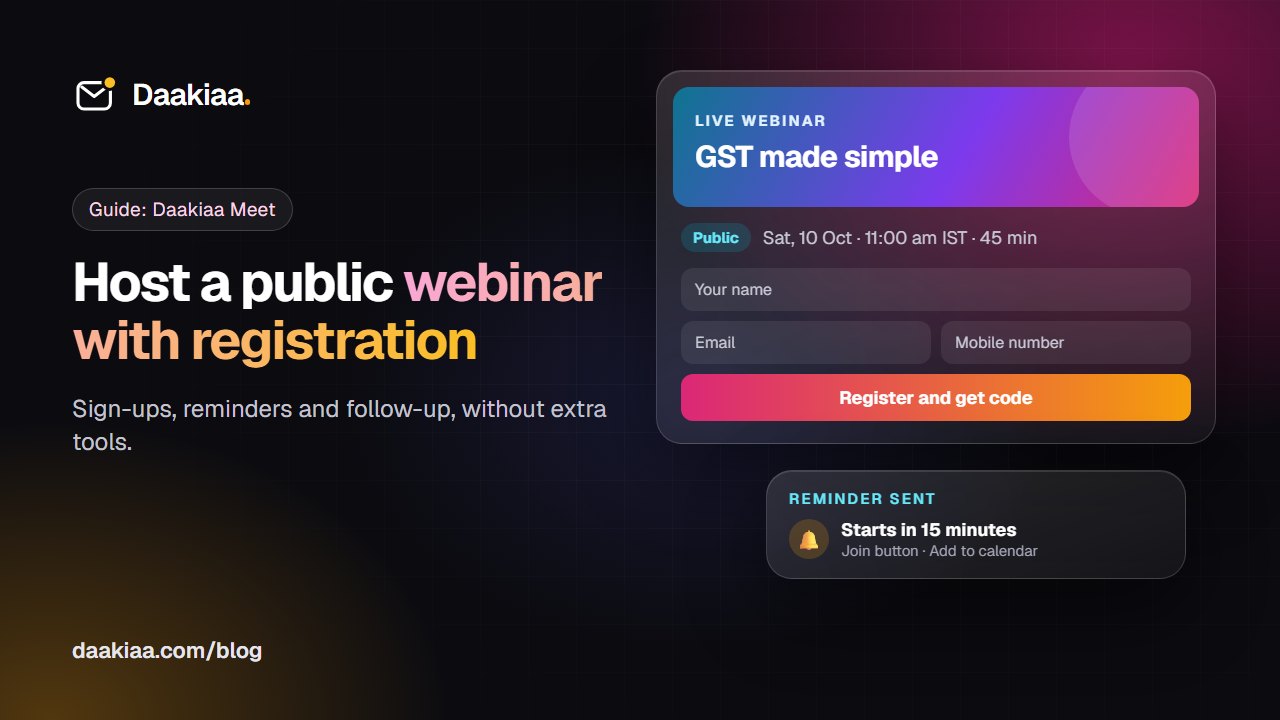
How to Host a Public Webinar with Registration: A Step-by-Step Guide
A step-by-step guide to hosting a public webinar with registration: plan it, brand it, collect sign-ups, send reminders and follow up, with Daakiaa Meet.
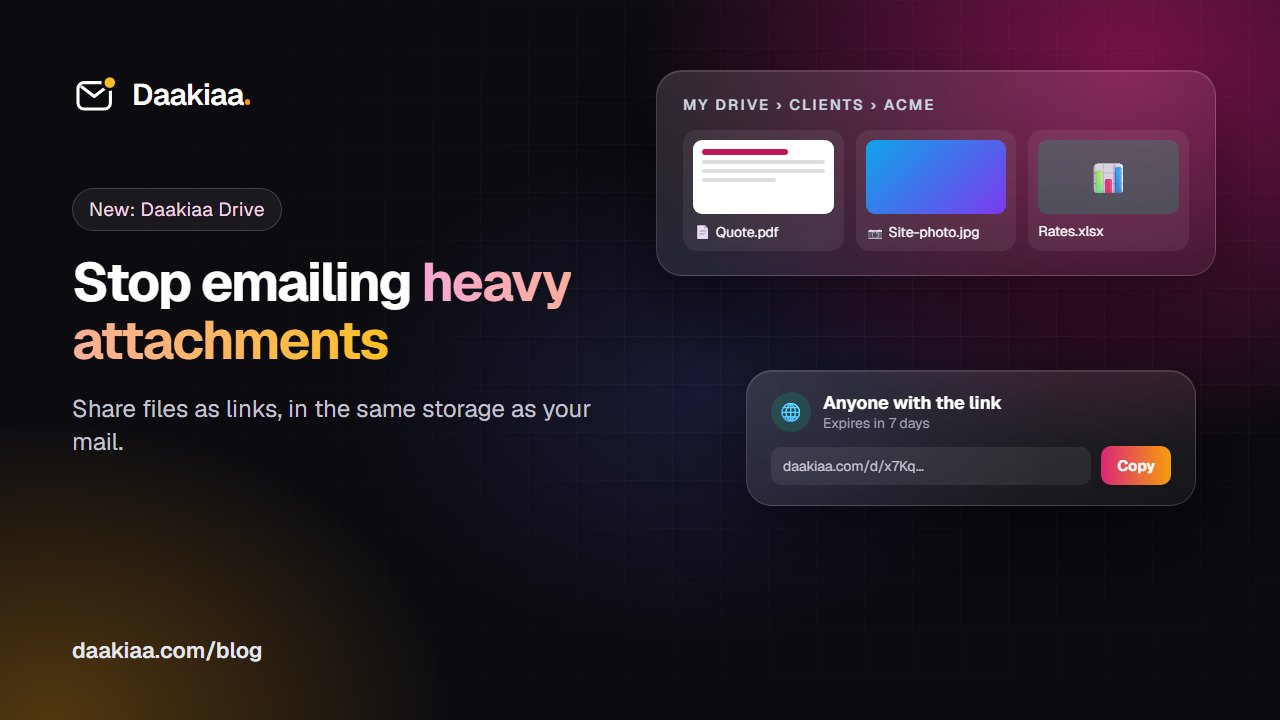
Share Large Files Without Attachments: A Simple System for Small Teams
Why attachments cause trouble, a simple folder system for small teams, and how Daakiaa Drive shares files as expiring links from your business email account.
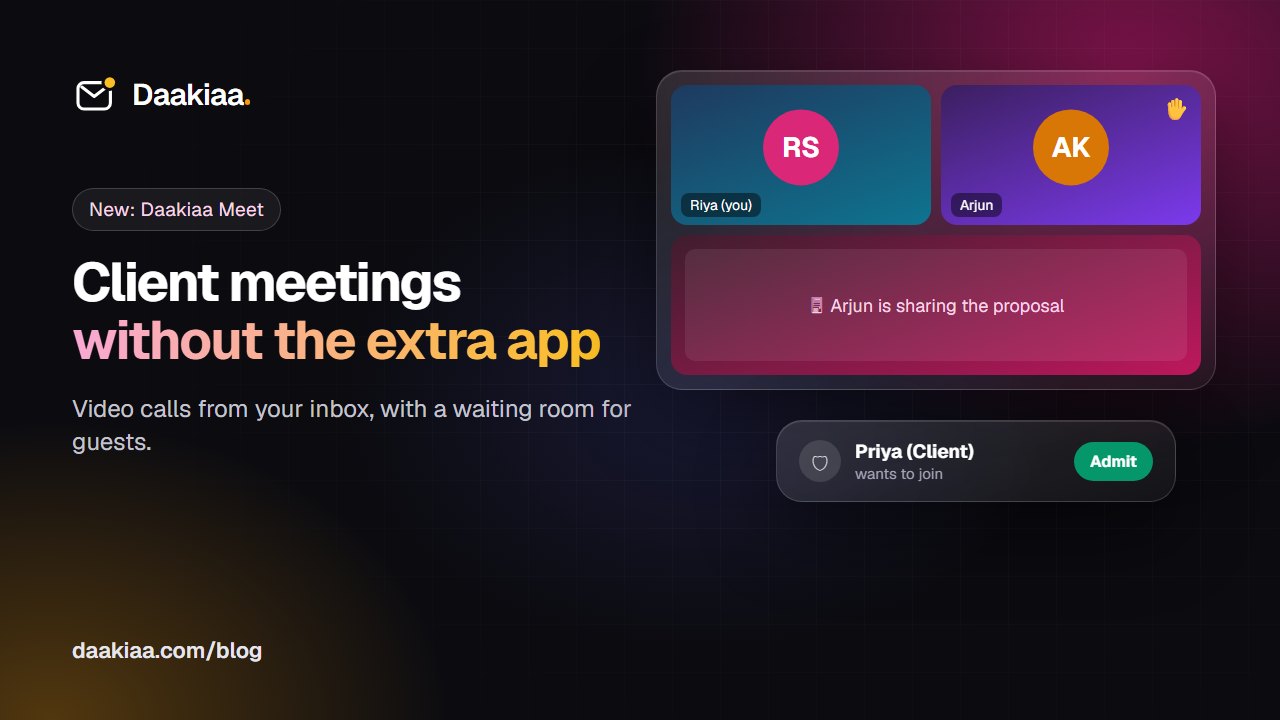
How to Run Professional Client Video Meetings Without Extra Apps
A simple checklist for professional client video meetings, and how Daakiaa Meet adds one-click calls, guest links and a waiting room to your business email.