Turn Emails into Tasks: A Simple System for Small Teams
Stop losing follow-ups in your inbox. A simple five-step system to turn emails into tasks, plan your day and assign work, with free Daakiaa Tasks.
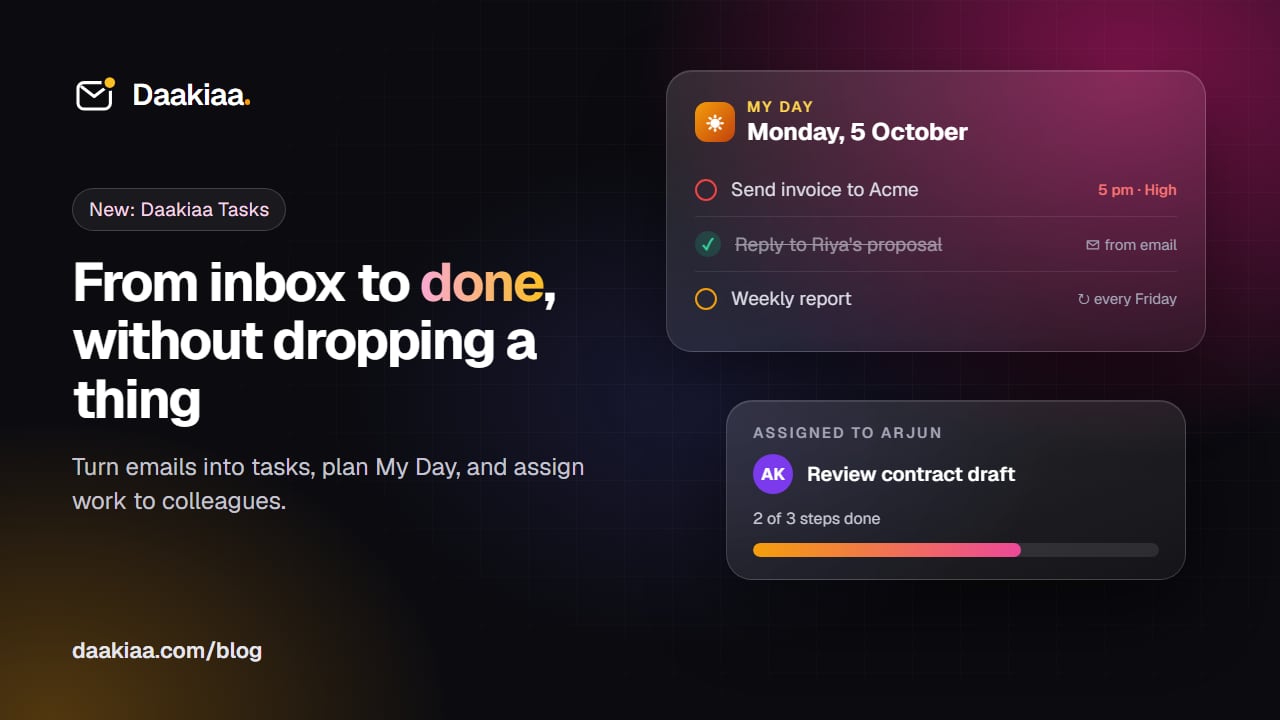
Most work in a small business arrives by email: a client asks for a quote, a vendor sends an invoice, a colleague needs a document reviewed. The problem is not the email itself, it is what happens next. The message gets read, marked as done in your head, and then slides down the inbox until someone follows up and asks why nothing happened.
A simple, dependable system for turning email into tasks fixes that. This guide shows one that works for teams of any size, and how Daakiaa’s new Tasks makes it a one-click habit.
Why the inbox is a bad to-do list
It is tempting to use the inbox itself as a to-do list: leave a message unread, star it, or keep it at the top. That breaks down quickly:
- An email has no due date. It cannot remind you on Thursday that the report is due on Friday.
- One email often hides several actions. “Please send the invoice, update the price list and call the bank” is three tasks.
- Work moves between people. When you hand a request to a colleague, the inbox has no way to show who owns it now.
- New mail buries old mail. The important follow-up from Monday disappears under Tuesday’s newsletters.
A task list solves exactly these problems, as long as getting things into it takes seconds.
A five-step system that works
1. Capture the action, not the email
When an email needs work from you, turn it into a task whose title is the next action: “Send revised quote to Acme”, not “Acme email”. Keep a link back to the message so the details are one tap away.
2. Give it a date only if it has one
Real deadlines get a due date and, if needed, a time. Everything else stays undated in a list. Fake deadlines teach you to ignore real ones.
3. Plan the day in the morning
Spend two minutes picking what you will actually do today. Overdue and due-today tasks belong here automatically; add a few more by hand. That short list, not the whole backlog, is what you work from.
4. Hand off with ownership
When a task belongs to someone else, assign it to them instead of forwarding the email and hoping. They should see it in their own list, and you should be able to see what you are waiting on.
5. Close the loop
Ticking a task off should take one tap. Repeating work, like a weekly report or monthly rent, should come back by itself with the next date.
Doing it with Daakiaa Tasks
Every Daakiaa plan, including the free business email plan, now includes Tasks in the same account as your mail and calendar. Open it from the apps menu at the top right.
Emails become tasks in one click
In any message, open the menu and choose Add to Tasks. The task lands in My Day with a link back to the email, so the context is never more than a tap away.
Quick add that understands you
Type a whole task in one line:
- Send invoice kal 5pm !high #Accounts sets the due time, high priority and the Accounts list.
- Review contract @rahul assigns it to Rahul in your company.
- Weekly report every friday repeats every week.
English and common Hinglish words like aaj, kal and parso both work.
My Day and smart views
My Day shows what is due today, what is overdue, and what you chose for today. Smart views keep the rest in order: Important, Planned, Overdue, Assigned to me and Assigned by me.
Assign work to colleagues
Choose anyone in your company as the owner of a task. They get a notification and find it in Assigned to me; you follow it in Assigned by me and see the moment it is done.
Steps, reminders and repeats
Break a task into steps and watch the progress (“2 of 3”). Set a reminder and get a notification at the right time, on your computer or phone, even when Daakiaa is closed. Repeating tasks come back with their next date when you complete them.
Start today
- Sign in to your Daakiaa webmail and open Tasks from the apps menu.
- Type three things you need to do this week into quick add.
- Next time an email needs action, choose Add to Tasks instead of leaving it unread.
New to Daakiaa? Create a free account to get business email on your own domain with tasks and a calendar included, or compare the plans for bigger teams. Read more about Daakiaa Tasks.
Business email on your own domain, free
3 mailboxes free forever, with passkeys, spam protection and one-tap phone setup.
More from the blog
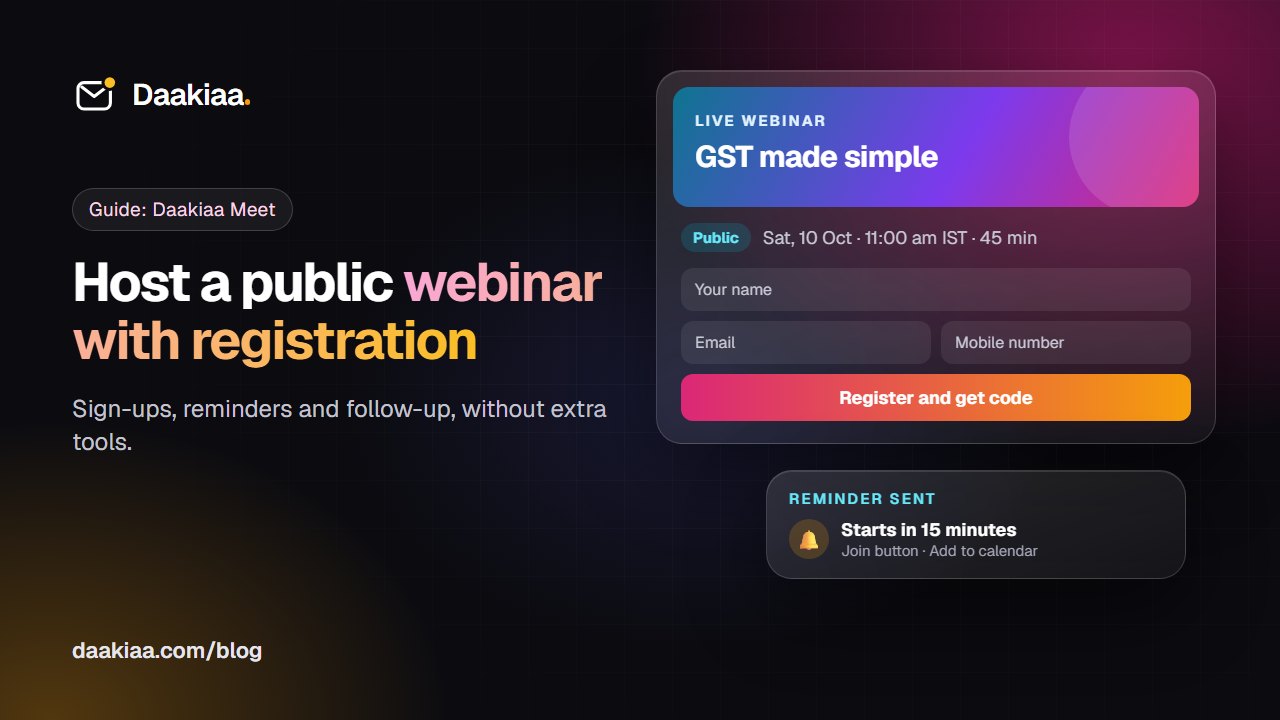
How to Host a Public Webinar with Registration: A Step-by-Step Guide
A step-by-step guide to hosting a public webinar with registration: plan it, brand it, collect sign-ups, send reminders and follow up, with Daakiaa Meet.
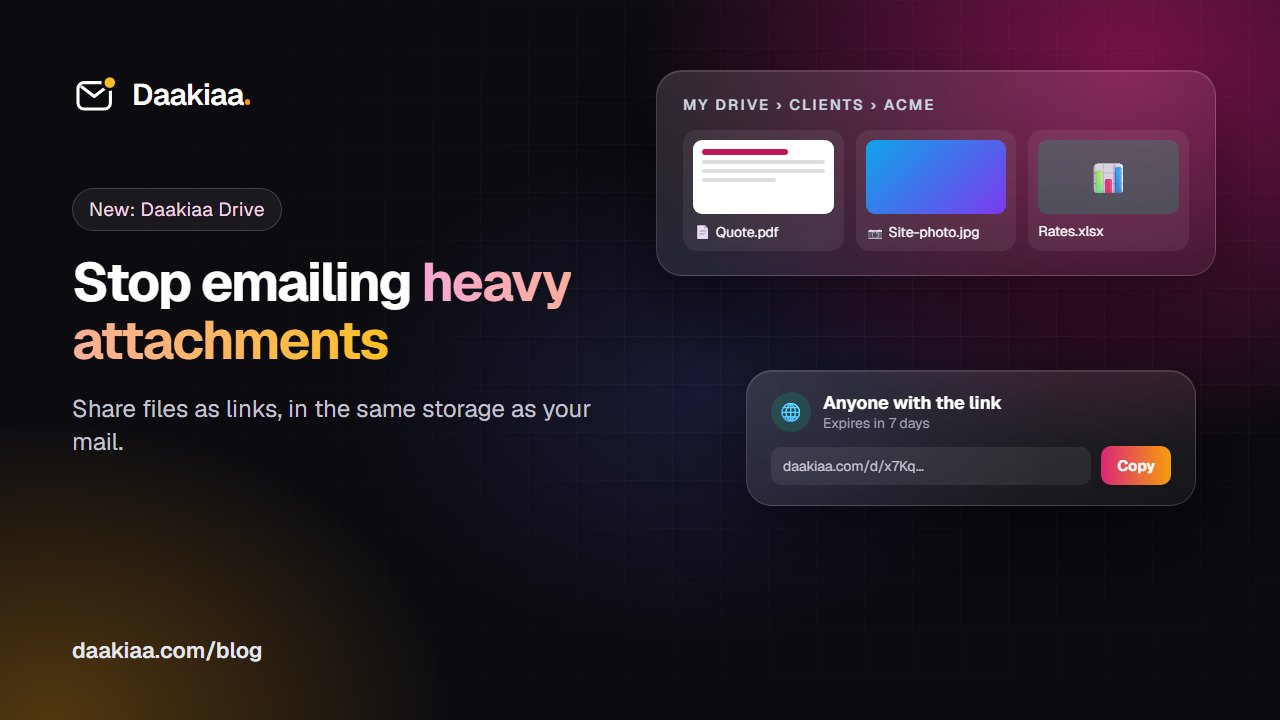
Share Large Files Without Attachments: A Simple System for Small Teams
Why attachments cause trouble, a simple folder system for small teams, and how Daakiaa Drive shares files as expiring links from your business email account.
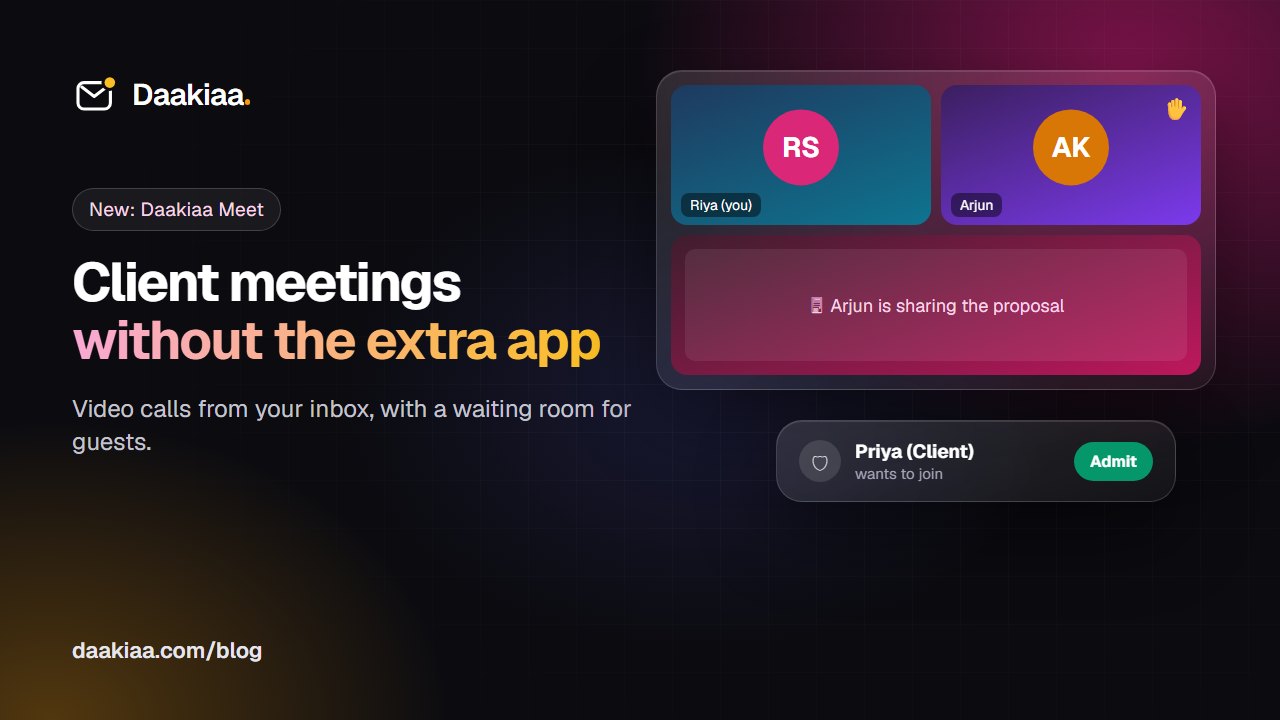
How to Run Professional Client Video Meetings Without Extra Apps
A simple checklist for professional client video meetings, and how Daakiaa Meet adds one-click calls, guest links and a waiting room to your business email.