Business Email Hacked? The Signs and What to Do in the First Hour
Spam going out from your company email, or a sign-in you don't recognise? Learn the warning signs and what to do in the first hour, in the right order.
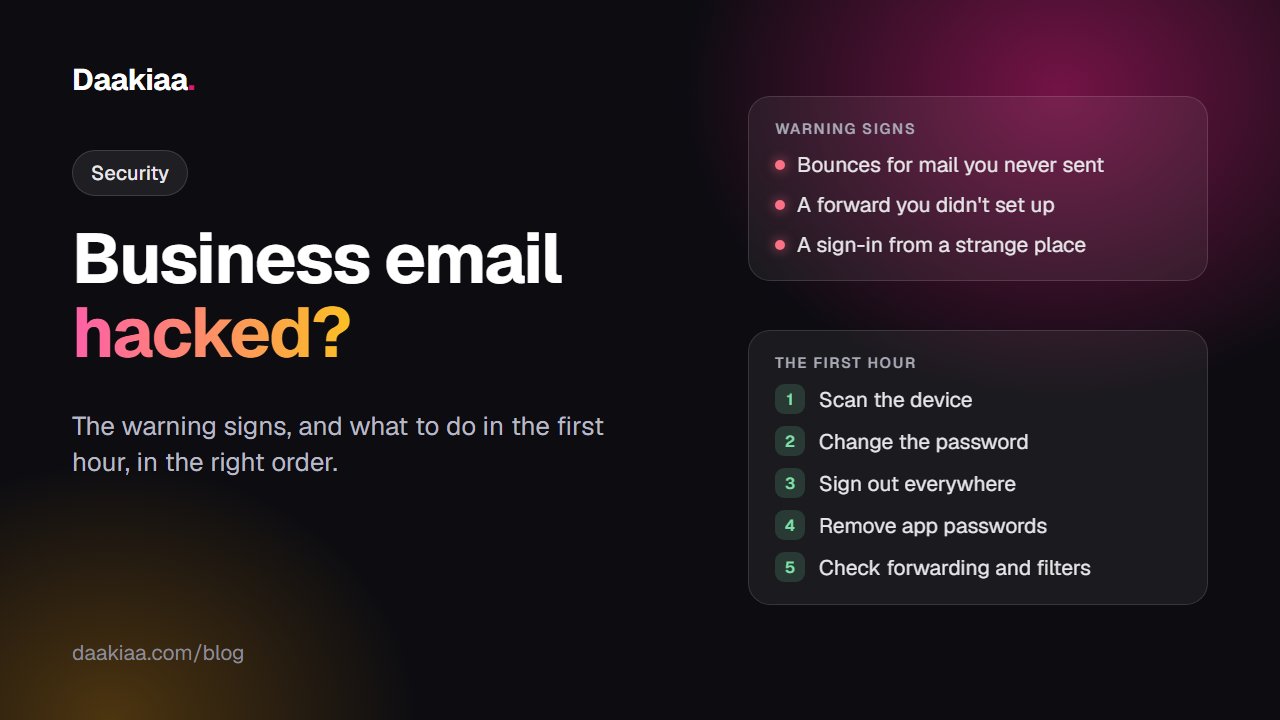
It usually starts with a phone call. A customer asks why you sent them a strange invoice. A supplier says your mail arrived in their spam folder. Or your inbox fills up with “delivery failed” notices for mail you never wrote.
When a business email account is hacked, the mailbox itself is rarely the real damage. The damage is what someone does with your name: spam that gets your domain blocked, fake payment requests sent to your customers, and quiet copies of your mail going somewhere else. The faster you act, the less of that happens.
This guide covers the warning signs, what to do in the first hour (in the right order), and how to stop it happening again. The steps work with any email provider.
Signs your business email may be hacked
Some signs are loud and some are quiet. Any one of these is worth checking today:
- Bounce messages for mail you never sent. Dozens of “Undeliverable” or “Delivery Status Notification” mails usually mean someone is sending spam from your address.
- Customers asking about mail you didn’t write, especially about payments, “new” bank details or urgent invoices.
- Mail missing or already read. Messages you never opened show as read, or replies you expect never arrive.
- Forwarding or filters you didn’t set. A forward to an unknown Gmail address, or a filter that moves mail containing “invoice” or “payment” out of your inbox, is a classic sign. Attackers use it to keep reading your mail even after you change the password.
- Sign-ins you don’t recognise: a device, city or country in your account activity that isn’t yours.
- Your password suddenly stops working. Someone may have changed it.
A mail saying “your mailbox is full” or “verify your account now” is not proof of hacking by itself. It is usually a phishing attempt, and it is exactly how many passwords get stolen. Don’t click it.
Hacked or spoofed?
Before you panic, check one thing. If customers received mail “from you” but it isn’t in your Sent folder, and your sign-in activity looks normal, your account may not be hacked at all. Your domain may be spoofed: someone is forging your address without ever getting into your mailbox.
The fix for spoofing is different. It is DNS records called SPF, DKIM and DMARC, which tell other mail servers to reject forged mail. Our guide on SPF, DKIM and DMARC explains them, and the free email DNS checker shows in seconds whether your domain has them.
If you’re not sure which one it is, follow the steps below anyway. They are safe either way.
What to do in the first hour
The order matters. If you change your password on an infected computer, the new password can be stolen too.
1. Check the device first
Most stolen email passwords today are not guessed. They are taken by password-stealing programs on a computer or phone, which read the passwords saved in browsers and mail apps. Run a full scan with a trusted antivirus on every computer and phone that uses this mailbox. If one is infected, use a different, clean device for the next steps.
2. Change the password
Make it new, long and used nowhere else: at least 12 characters, or better, three or four unrelated words. If you can’t sign in because the password was changed, use your provider’s account recovery, or ask your company’s email admin to reset it for you.
3. Sign out everywhere
Look for the list of devices where your mail is signed in, and sign out every one you don’t recognise, or simply all of them. Then sign in again only on your own devices.
4. Remove app passwords and connected apps
Mail apps such as Outlook, Thunderbird and phone mail often use separate app passwords, and some of these keep working after you change the main one. Remove any you don’t recognise, then create fresh ones for the apps you actually use. Do the same for any outside apps you allowed to sign in with your email account.
5. Check forwarding, filters and auto-replies
Open your mail settings and look at forwarding, filters (sometimes called rules) and the out-of-office reply. Delete anything you didn’t set up yourself. This step is easy to skip, and it is the one attackers count on.
6. Find out what was sent
Look at your Sent folder, but don’t stop there: spam sent through a mail app or a script often never shows up in Sent. Ask your admin or provider whether they keep a log of outgoing mail. If fake invoices or payment requests went out, warn those customers and suppliers by phone, not only by email.
7. Tell your team
When one mailbox is hit, colleagues are often next, and a mail from a known address is easy to trust. A short message such as “Ignore any payment mail from me sent today; call me first” prevents the most expensive mistakes.
If money was lost or someone was cheated, report it on the National Cyber Crime Reporting Portal at cybercrime.gov.in or call the helpline 1930 as soon as you can. Companies may also have to report certain cyber security incidents to CERT-In within six hours of noticing them; if you’re unsure whether yours counts, ask your IT or legal adviser.
If you are the company’s email admin
When the hacked mailbox belongs to someone on your team:
- Reset their password from the admin panel, and make sure they are signed out everywhere, mail apps included.
- Stop the sending. Check what the mailbox sent recently and hold anything still queued.
- Check other accounts. People reuse passwords, so look for odd sign-ins on the rest of the team too.
- Turn on 2-step verification for everyone, not only for the person who was hit.
How to stop it happening again
- Turn on 2-step verification. After the password, you enter a 6-digit code from an authenticator app on your phone. A stolen password alone is then not enough to open your mail.
- Use passkeys where you can. A passkey signs you in with your fingerprint, face or screen lock instead of a password, and it works only on the real site, so it can’t be phished.
- One app password per app. If a laptop is lost or a phone replaced, remove only that app’s password.
- Add a recovery email or mobile, so you can get back in by yourself if the password is changed.
- Never reuse your email password. When some old shopping site leaks its passwords, attackers try them on email accounts first.
- Keep devices clean and updated, and avoid cracked software. It is one of the most common ways password stealers arrive.
- Open your mail site yourself. When a mail asks you to “sign in again” to see a document or fix your mailbox, type the address of your mail site instead of clicking the link.
How Daakiaa helps
We built Daakiaa to catch a hacked mailbox early and to make the clean-up quick.
Sending protection. Daakiaa counts what each mailbox sends, from webmail and from mail apps. If a mailbox suddenly starts sending the way a hacked one does, sending is paused at once, the mail it had queued is held, and the company’s admins get an email. The admin changes the password, then chooses whether to deliver or delete the held mail.
Outgoing mail log. Admins can see every message their people sent, from webmail and from mail apps, whether or not it is in the Sent folder. It is kept for 90 days, so step 6 above takes a minute, not a day.
Sign-in protection. Daakiaa learns the devices and networks each mailbox normally uses. When someone tries to guess a password from many networks, the mailbox is shielded: mail apps from new networks are turned away, and a new device needs a robot check and a code sent to the recovery mobile or email. The person’s usual devices notice nothing.
Sign-in countries. A company chooses the countries its people sign in from. If the right password is used from anywhere else, nothing opens until an admin approves, so a leaked password is far less useful abroad.
Everything from the steps above. In Settings → Security you’ll find 2-step verification (works with Google Authenticator, Microsoft Authenticator or any authenticator app), passkeys, recovery email and mobile, and a separate app password for each mail app. Admins can require 2-step verification for the whole company. At the bottom of your inbox, Last account activity shows where your mail is open, with a button to sign out all other sessions. And when an admin resets a password, the person is signed out everywhere, mail apps included, and their app passwords are removed.
If you’re comparing providers, see how we stack up against Google Workspace and Zoho Mail, or look at our pricing. You can also start free with up to 3 mailboxes.
Whichever email you use, turn on 2-step verification today. It takes two minutes, and it stops most of what this article describes.
Business email on your own domain, free
3 mailboxes free forever, with passkeys, spam protection and one-tap phone setup.
More from the blog
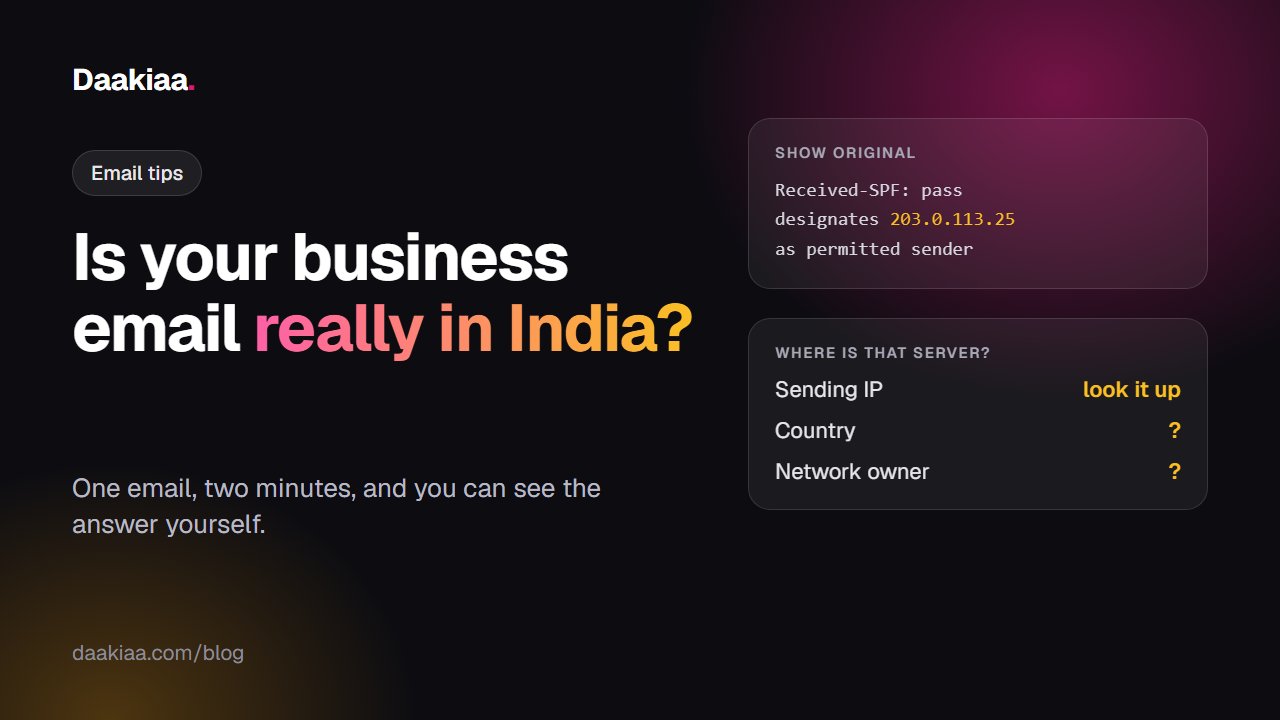
Is Your Business Email Really in India? A 2-Minute Test
"Stored in India" covers only your mailbox. Learn how to check in two minutes where your business email is really sent from, with any provider.
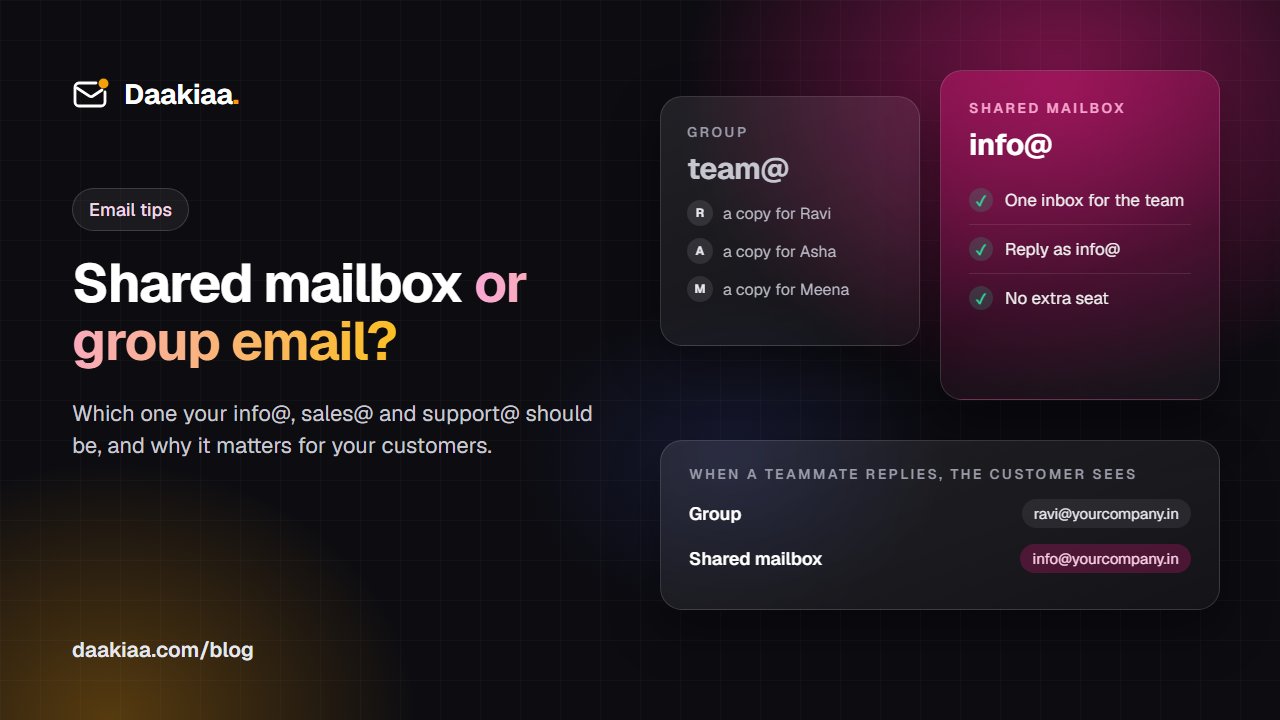
Shared Mailbox vs Group Email: Which Should info@ and sales@ Be?
A group sends everyone a copy; a shared mailbox gives your team one inbox and replies as info@. Learn which one each company address should be.
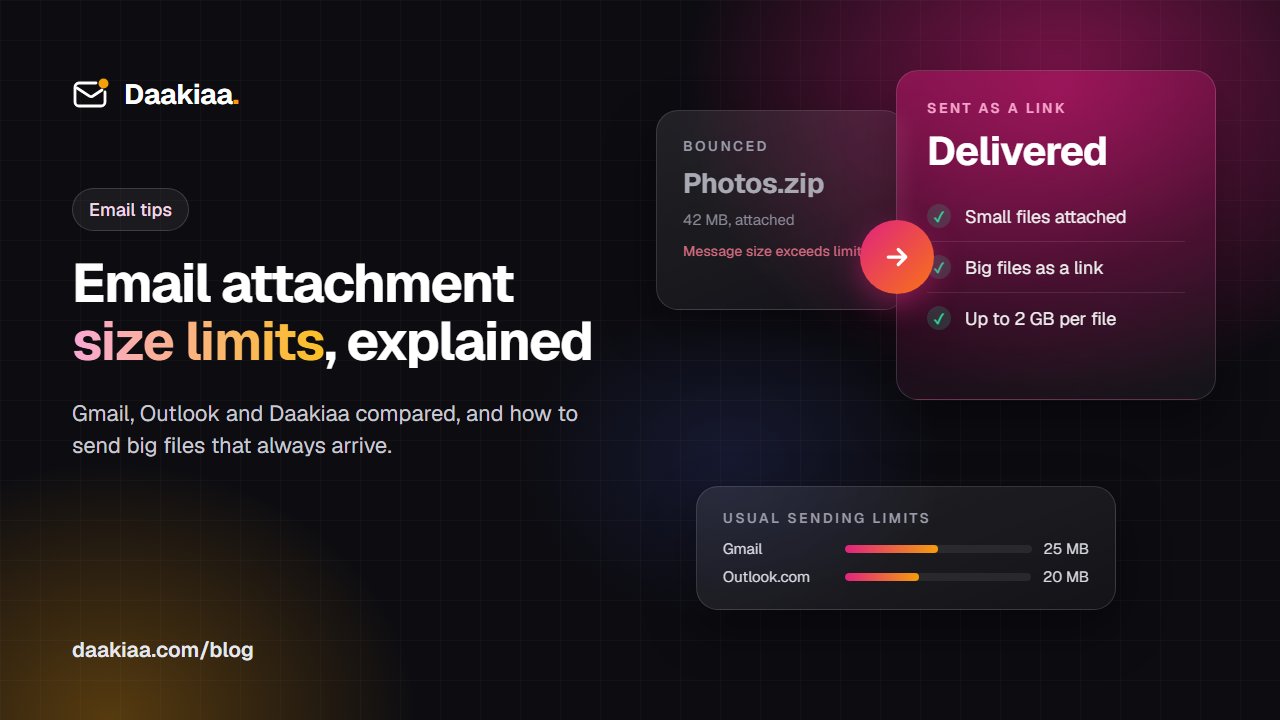
Email Attachment Size Limits: Gmail, Outlook and Daakiaa Compared
What is the email attachment size limit in Gmail, Outlook and Microsoft 365? Why big files bounce, and how to send large files by email that always arrive.